Create Your First Campaign
Create, design, target, test, and send or schedule an email campaign.
Go to Virfice → Campaigns and click Create Campaign.
1. Enter the campaign details
- Campaign title: internal only, for example “October newsletter”.
- Sender name and Sender email: prefilled from Settings.
- Subject and Preview text: what people see in their inbox. The preview text appears after the subject in most email apps.
2. Choose recipients
Add lists or tags under Included Recipients. Use Excluded Recipients to leave people out, for example excluding the “Customer” tag from a first-order discount. Check the recipient count before you continue.
3. Design the email
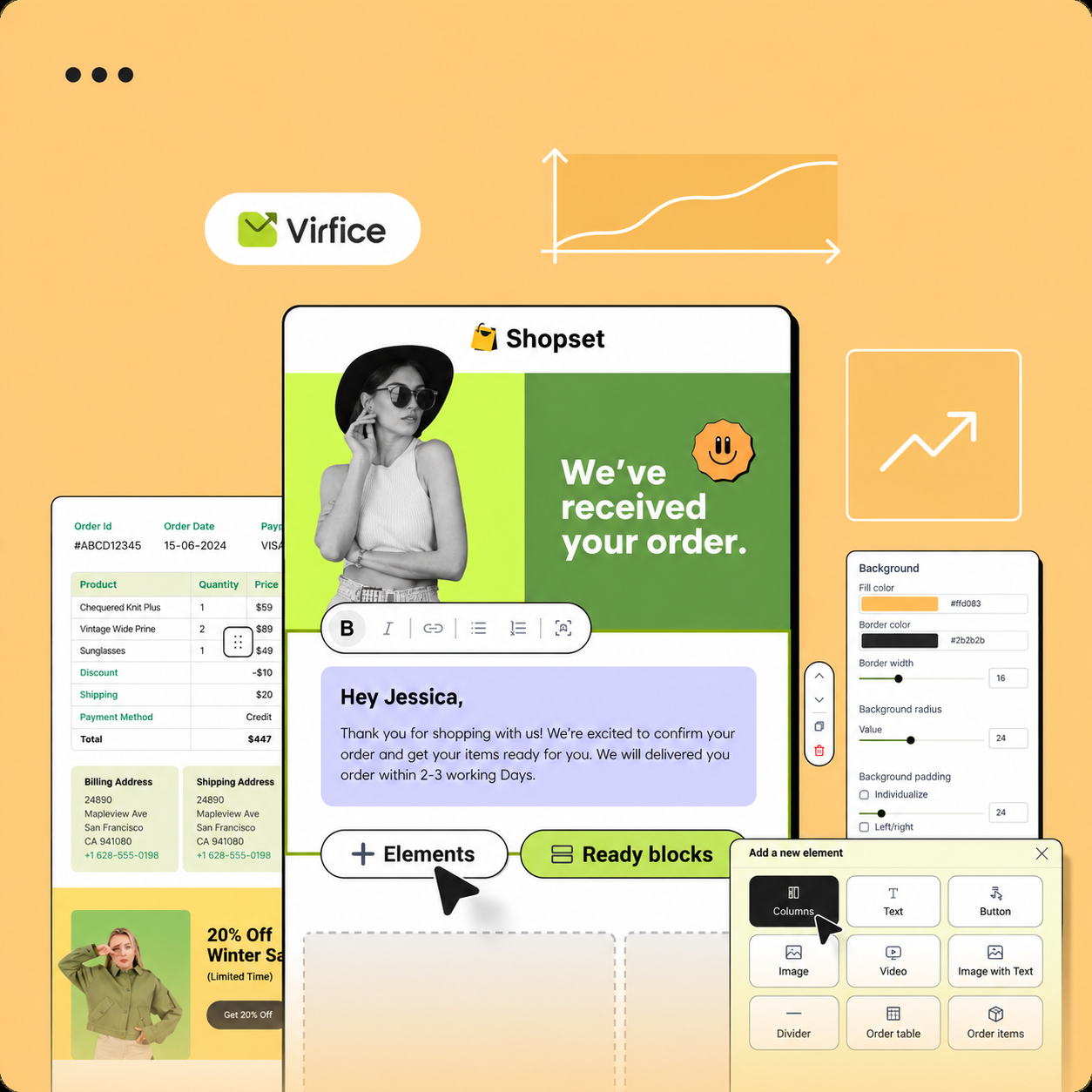
Choose a template or Start from scratch, then edit in the builder. See Use the Virfice Email Builder.
4. Preview and test
Click Preview Email, then Send test mail to yourself. Check links, images, the unsubscribe footer, and the mobile layout.
5. Send or schedule
Click Send Now, or Schedule and choose a future date and time.
After a campaign is scheduled, its title, subject, preview text, and sender can’t be changed. Cancel the schedule if you need to edit them.
Virfice sends in batches based on your sending frequency. Unsubscribed and suppressed contacts are skipped automatically.