Installation Guide
Virfice Free
Install and activate Virfice from the WordPress dashboard or by uploading the plugin manually.
Installing Virfice is just like installing any other WordPress plugin. You can install it directly from your WordPress dashboard or download and upload it manually.
Method 1: Install Virfice from the WordPress dashboard
Go to WordPress Dashboard → Plugins → Add New Plugin. Search for Virfice, find Email Customizer for WooCommerce | Virfice, and click Install Now.
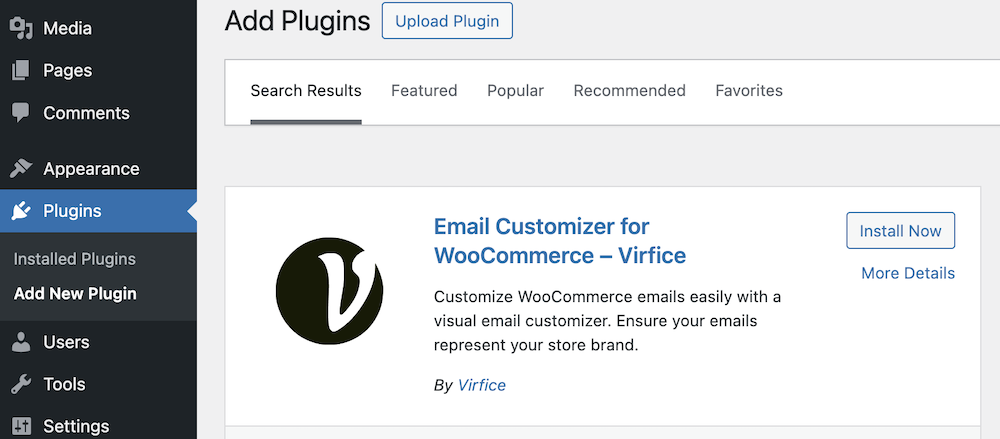
Activate the plugin once installation is complete. Congratulations—you have successfully installed Virfice.

Method 2: Manual installation
Download Virfice from the WordPress plugin directory.
Go to WordPress Dashboard → Plugins → Add New Plugin, click Upload Plugin, select the downloaded ZIP file, and click Install Now.
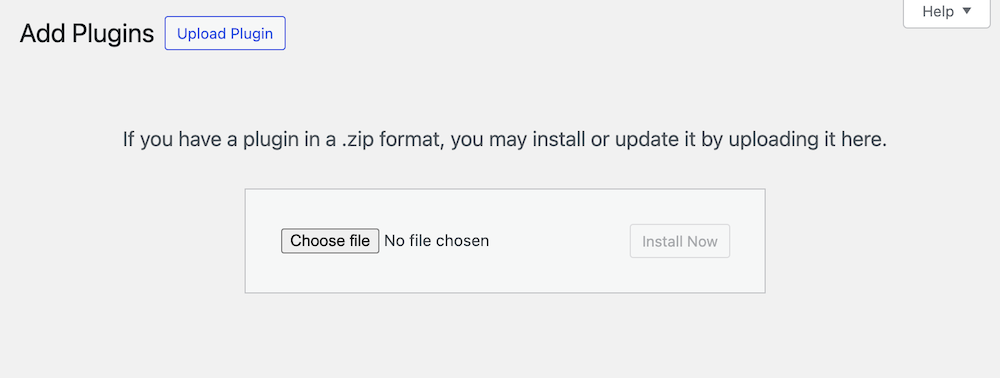
Activate the plugin once installation is complete.