A customer who spends $500 in your store and one who spends $15 may need different follow-up emails. By sending WooCommerce emails based on order value, you can tailor your messages to each customer’s spending habits. Your high-value customers might appreciate exclusive offers or loyalty rewards, while customers who spend less may respond better to product recommendations or incentives to make another purchase.
WooCommerce doesn’t make this distinction on its own. Every completed order triggers the same transactional emails, whether the customer spent $15 or $500.
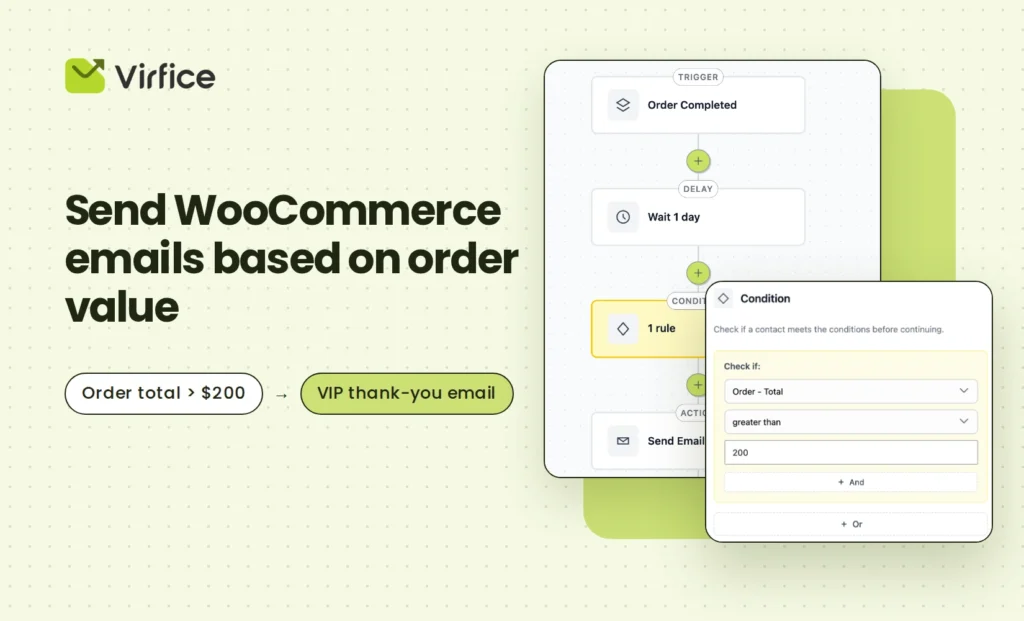
With Virfice’s WooCommerce email automation, you can send WooCommerce emails based on order value and deliver more relevant post-purchase messages. The automation checks the total order amount and sends a follow-up email based on your defined conditions. The workflow looks like this:
Order Completed → Delay → Condition [Order – Total] → Send Email
In this guide, you’ll learn how to send WooCommerce emails based on order value, step by step, and explore practical post-purchase email ideas for both high-value and low-value orders.
Why Send WooCommerce Emails Based on Order Value?
Order value is one of the clearest signals you have about a customer. It tells you how much they trust your store, how much they’re willing to spend, and how much a repeat purchase from them is worth to you.
Yet most stores treat every order the same. A customer who places a large order gets the same thank-you email as someone who bought a single low-priced item. That’s a missed opportunity on both ends.
When you send WooCommerce emails based on order value, you can create targeted post-purchase campaigns for different customer segments. For high-value orders, a personalized thank-you message, an exclusive discount, or early access to new products can help build customer loyalty and encourage repeat purchases. Since these customers may have a higher customer lifetime value, nurturing the relationship can benefit your business in the long run.
For smaller orders, the goal is different. A follow-up with a free-shipping threshold, a bundle suggestion, or a discount on the next order can raise your average order value and encourage repeat purchases.
This is customer segmentation by spend, and it doesn’t require exporting your customer data to a third-party tool. With Virfice, you can use the order total as a condition to decide which customers receive which email, right inside your WordPress dashboard.
How to Send WooCommerce Emails Based on Order Value
Before setting up your automation to send WooCommerce emails based on order value, make sure you have the following:
- WordPress
- WooCommerce
- Virfice (free or Pro)
- Email sending configured through Virfice’s built-in SMTP
For this tutorial, our goal is to send a VIP thank-you email to every customer whose order total is greater than $200. We’ll build the following workflow:
Order Completed → Wait 1 day → Condition [Order – Total greater than 200] → Send Email
Let’s build it.
Step 1: Create a New Automation in Virfice
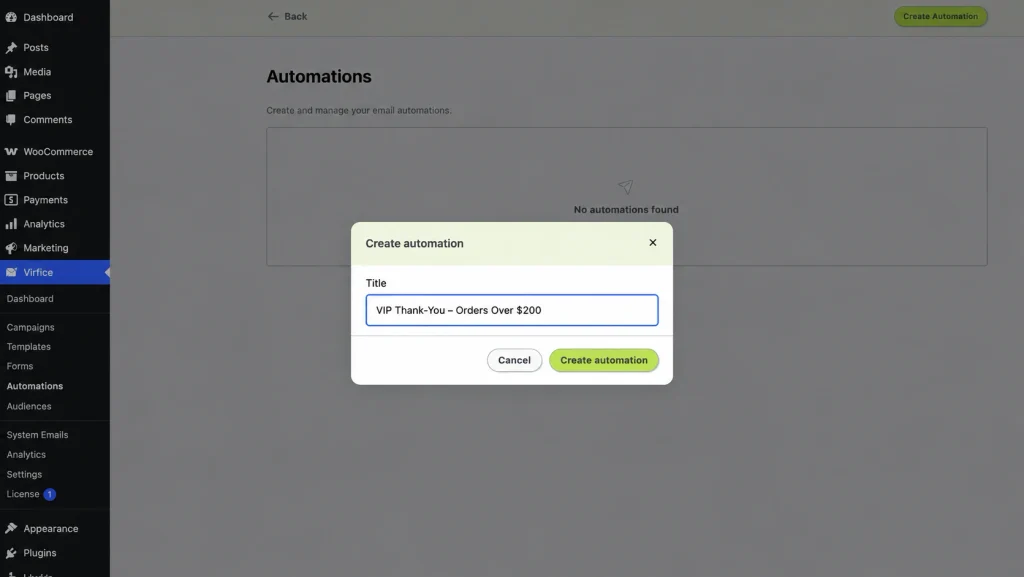
Go to your WordPress dashboard and navigate to Virfice → Automations. Create a new automation and give it a descriptive name, so you can quickly recognize it later.
For this example, call it VIP Thank-You – Orders Over $200.
Step 2: Choose “Order Completed” as the Trigger
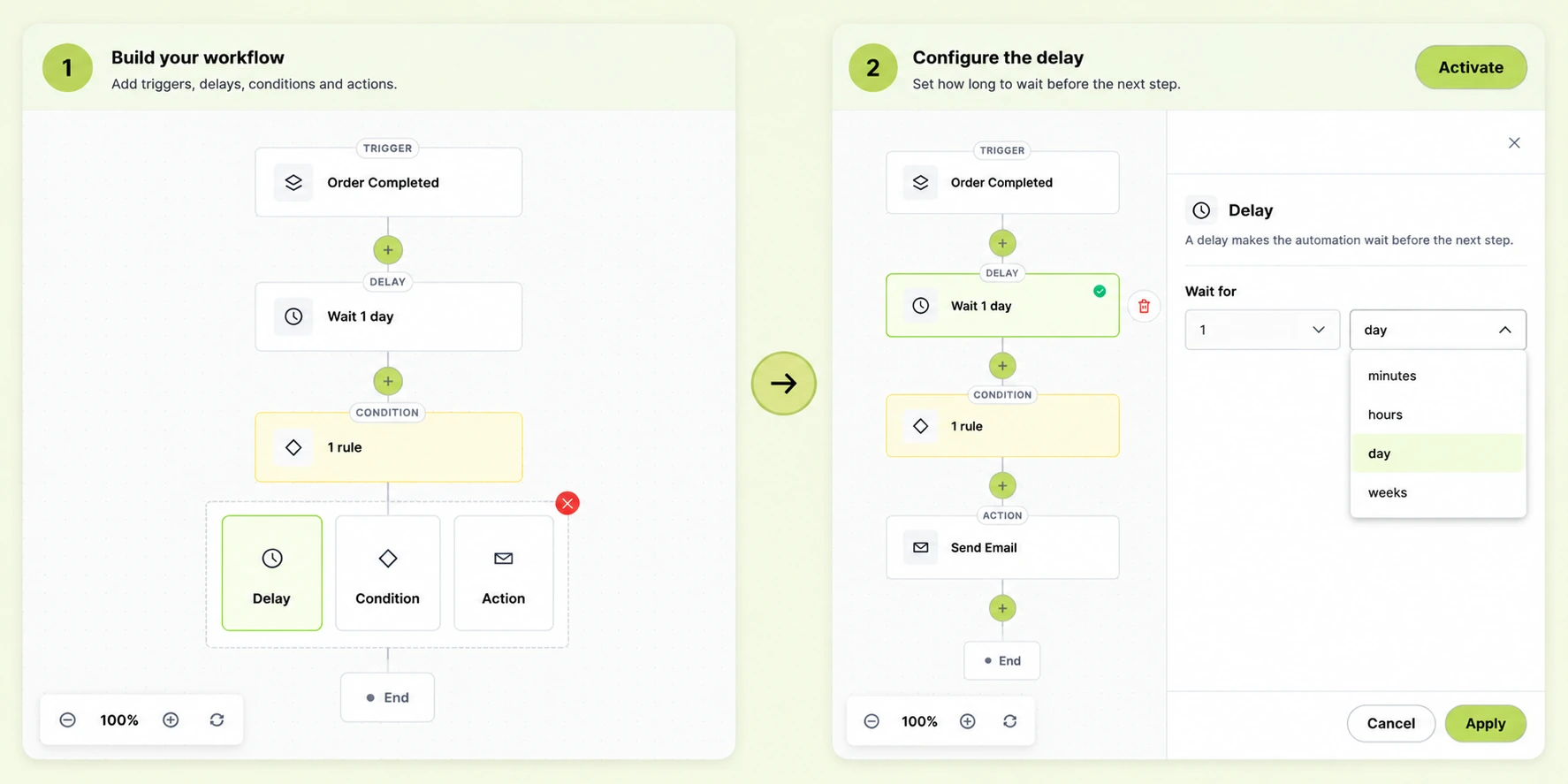
Select Order Completed as the trigger. This starts the workflow whenever a WooCommerce order reaches the Completed status. From there, Virfice can read the order’s details, including its total, and check it against your condition.

Step 3: Add a Delay
Click the + icon under the trigger and select Delay. In our example, we’ll wait 1 day.
A short delay keeps your VIP email from landing in the inbox at the same moment as WooCommerce’s order confirmation. It also gives the thank-you a more personal feel, as if you noticed the order and took time to write.
Step 4: Add a Condition – Select “Order – Total”
Click the + icon under the delay and choose Condition. Without a condition, every customer would continue to the email, no matter how much they spent.

In the Condition panel on the right, open the Check if dropdown and select Order – Total. Then choose an operator. Virfice gives you four options:
| Operator | What it does | Example use |
|---|---|---|
| greater than | Matches orders above your amount | VIP email for orders over $200 |
| less than | Matches orders below your amount | Upsell email for orders under $50 |
| equals | Matches orders of exactly your amount | A fixed-price bundle or gift box |
| not equals | Matches every order except that amount | Exclude a fixed-price item from a follow-up |
For our example, select greater than and enter 200 in the value field.
Your condition should now look like this:
Order – Total → greater than → 200
If the order total is more than $200, the customer continues to the email. If it isn’t, the automation ends for that customer.
Need a range instead of a single threshold? Click + And to add a second rule. For example, Order – Total greater than 100 AND Order – Total less than 200 targets mid-range orders only. Use + Or when a customer should qualify if either rule matches.
Step 5: Add the “Send Email” Action
Click the + icon under the condition and select Send Email. Fill in the email details in the panel on the right, including the subject line, preview text, and content.
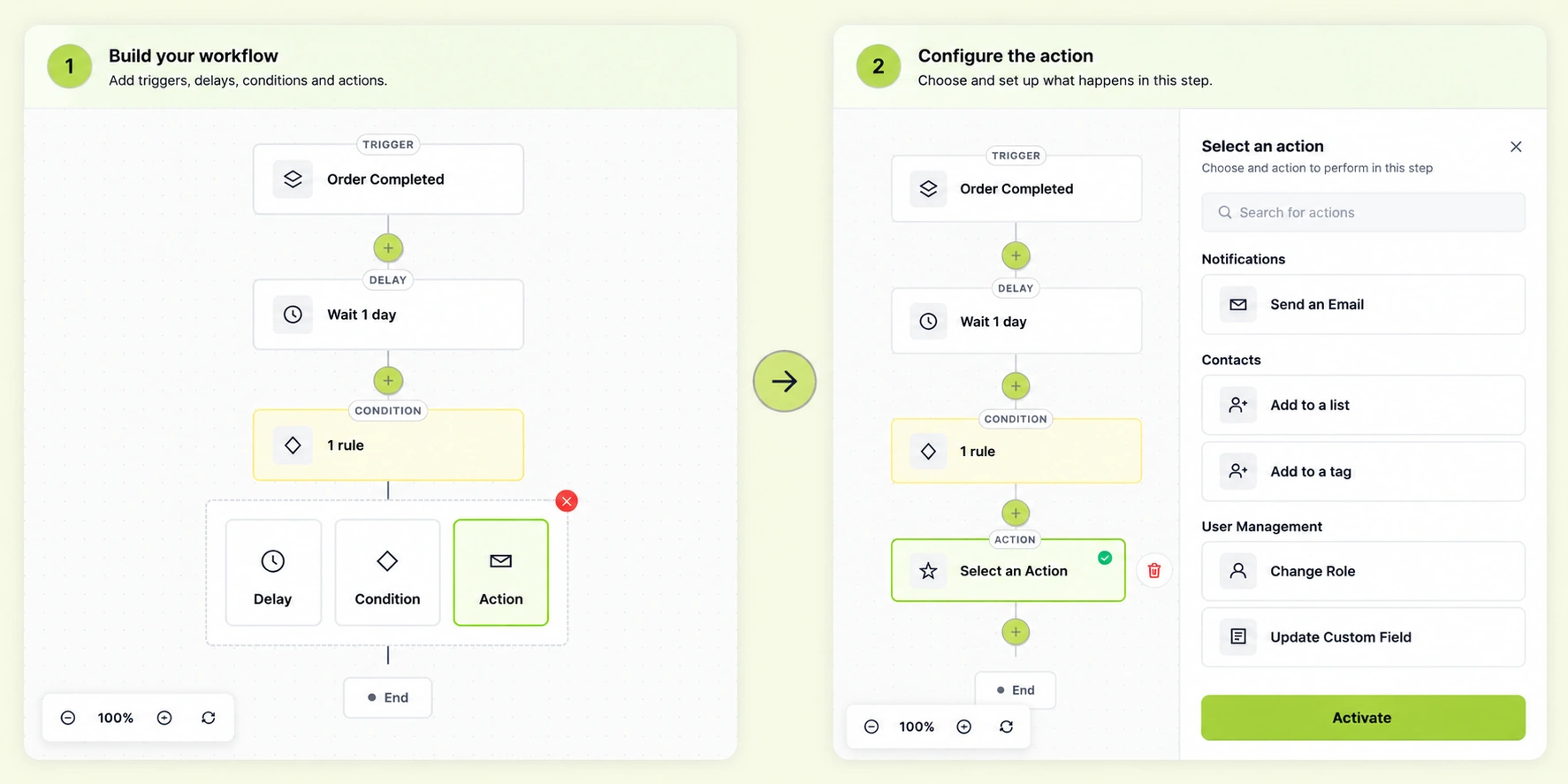
Your automation is now complete:
Order Completed → Wait 1 day → Condition [Order – Total greater than 200] → Send Email
Step 6: Write an Email That Matches the Order Value
This customer just spent more than $200 with you. The email should make them feel recognized, not sold to again. Design it with the drag-and-drop email builder, or start from one of the ready-made templates.
You could use a subject line such as Thank you for your order, here’s something for next time and preview text such as A small thank-you for being one of our best customers.
When you send WooCommerce emails based on order value, you can make high-value customers feel appreciated with personalized post-purchase emails. Your email could include:
- A short, personal thank-you, ideally signed by you or your team
- A VIP discount code for their next order
- Early access to a new product or upcoming sale
- A direct way to contact you if they need anything
Here’s a a minimal example email design you can follow:

Keep it short and sincere. A high-value customer will notice the difference between a genuine thank-you and another promotion.
What Types of Emails Can You Send Based on Order Value?
When you send WooCommerce emails based on order value, you can create targeted email campaigns for different customer segments. A VIP thank-you email is just one option. Depending on the purchase amount, you can automate personalized post-purchase emails, recommend complementary products, offer exclusive discounts, or encourage repeat purchases.
VIP Thank-You for High-Value Orders
Your biggest orders deserve more than an automated receipt. A personal thank-you shows the customer you noticed their purchase and value their trust.
Condition: Order – Total greater than 200
Email: A personal thank-you from the store owner, with a VIP code for the next order
The goal isn’t to sell immediately. It’s to make your best customers feel like your best customers.
Upsell Email for Small Orders
Customers who place small orders already trust you enough to buy. A well-timed follow-up can encourage them to spend more next time.
Condition: Order – Total less than 50
Email: “Spend $75 on your next order and get free shipping”
Or:
Email: Bundle suggestions that pair well with what they bought
Give them a clear, specific reason to come back with a bigger basket.
Mid-Range Loyalty Nudge
Customers in the middle are often your most consistent buyers. Use + And to target this group with two rules.
Condition: Order – Total greater than 50 AND Order – Total less than 200

Email: A loyalty discount or an invitation to join your rewards program
This keeps your regular customers engaged without overspending on discounts.
Free Gift or Bonus Delivery Note
If you run a promotion like “free gift with orders over $150,” an order value automation can confirm it for the customer.
Condition: Order – Total greater than 150
Email: “Your free gift is on its way” with details about what’s included
This reduces support questions and reminds the customer why spending more was worth it.
Review Request From Big Spenders
Customers who place large orders are often your most satisfied buyers. Their reviews also tend to carry more weight with shoppers considering expensive products.
Order Completed ↓ Wait 10 days ↓ Condition: Order – Total greater than 200 ↓ Send Review Request
Adjust the delay to give customers enough time to receive and use what they bought.
Test Your Order Value Automation Before Activating It
Before you click Activate, test the automation so the right customers get the right email.
Place a test order with a total above your threshold, for example $250. Check that the Order Completed trigger fires, the delay runs, the condition matches, and the email arrives with working content and links.
Then place a second test order below the threshold, for example $80. That customer should not receive the VIP email.
Pay close attention to orders right at the boundary. “Greater than 200” does not include an order of exactly $200. If $200 orders should qualify, set the value to 199.99 instead.
If you use + And or + Or rules, test each combination. You need to confirm both sides: the right customers get the email, and the wrong customers don’t. Once everything works, click Activate.
WooCommerce Order Value Email Automation Ideas
Once you know the basic workflow, you can build several WooCommerce follow-up emails around different order sizes. Adjust the amounts to fit your store’s average order value.
| Condition | Automated email |
|---|---|
| Order – Total greater than 500 | Personal thank-you from the founder |
| Order – Total greater than 200 | VIP discount for the next order |
| Order – Total greater than 150 | Free gift confirmation |
| Order – Total greater than 200 (after 10 days) | Review request |
| Order – Total greater than 50 AND less than 200 | Loyalty program invitation |
| Order – Total less than 50 | Free-shipping threshold reminder |
| Order – Total less than 50 | Bundle or related product suggestions |
| Order – Total less than 30 (after 14 days) | Discount to encourage a second purchase |
A simple way to pick your thresholds: check your average order value in WooCommerce. Set your VIP threshold well above it and your upsell threshold below it. After a few weeks, review open and click rates in Virfice analytics and adjust.
Treat Every Customer Based on What They Spend
Your customers aren’t all the same, and your follow-up emails shouldn’t be either. Order value tells you who your best customers are and who has room to grow. Using that information is one of the simplest ways to make your email marketing more personal and more profitable.
Instead of manually checking order totals, Virfice lets you send WooCommerce emails based on order value automatically. Start with the Order Completed trigger, add a delay, set Order – Total as your condition, and add your email. You can build on the same workflow with other conditions too, such as emails for customers who buy a specific product or emails for specific coupon codes.
And because Virfice runs on your own WordPress site, your customer and order data stays with you. No third-party platform, and no monthly bill that grows with your list. If you currently pay for Mailchimp or Omnisend, use the email marketing cost calculator to see how much you could save.