Not every customer should receive the same post-purchase email. Someone who buys a laptop may need setup instructions, while someone purchasing skincare might benefit from a usage guide. A customer buying coffee could appreciate brewing tips, and someone purchasing a WordPress plugin may need onboarding resources. The most useful follow-up depends on what each customer has purchased and what would help them get more value from it.
This is where product-based email automation becomes useful. With Virfice, you can create a WooCommerce automation that detects when an order contains a specific product and automatically sends the customer an email tailored to that purchase.
The workflow is simple:
Order Completed → Delay → Condition [Specific product] → Send Email
In this guide, we’ll walk through how to set up product-specific email automation and explore practical ways to use it in your WooCommerce store.
Why Send Automated Emails Based on Products Purchased?
WooCommerce already sends transactional emails for events such as new orders and order-status changes. These messages are important, but their primary purpose is to communicate information about the transaction. They don’t necessarily provide the product-specific guidance or recommendations customers may need after making a purchase.
Product-specific automation lets you go further by tailoring follow-up messages to what the customer actually bought. For example, imagine your WooCommerce store sells an espresso machine. After someone purchases it, you could send a thank-you email with getting-started information immediately, share tips for making better espresso after a few days, and follow up later with cleaning instructions or recommendations for compatible coffee beans and accessories.
These emails are relevant because they’re connected to something you already know about the customer: their purchase. With Virfice, you can use the purchased product as a condition to determine which customers should receive each follow-up email.
How to send automated emails to customers who buy a specific product
Before creating the automation, make sure you have:
- WordPress
- WooCommerce
- Virfice free and Pro
- At least one WooCommerce product
- Email sending properly configured in Virfice
For this tutorial, let’s use a product called Premium Coffee Maker. Our goal is to automatically send every customer who purchases this product a getting-started email. We’ll build the following workflow:
Order Completed → Delay → Condition [Specific product]→ Send Email
Let’s build it.
Step 1: Create a New Automation in Virfice
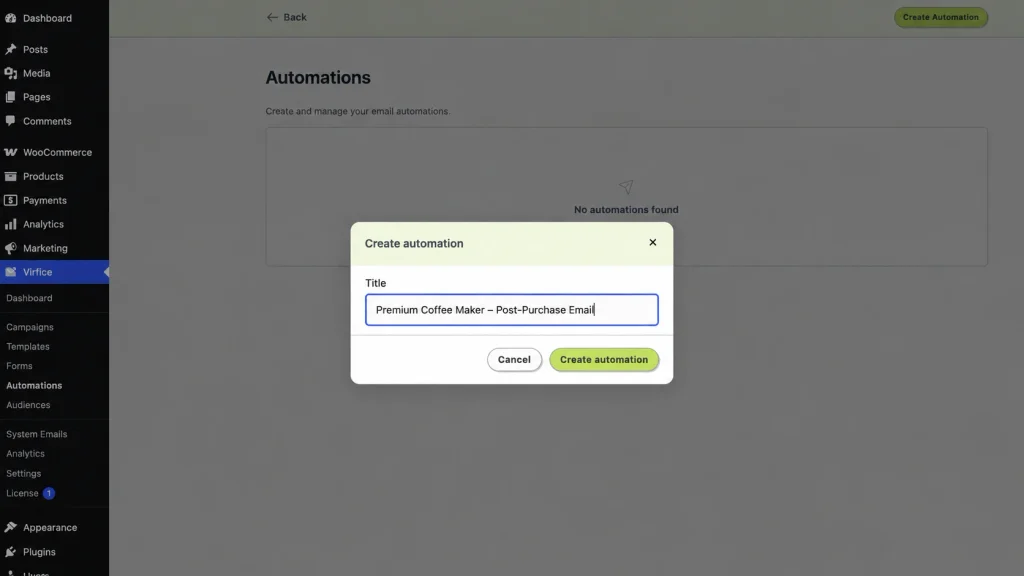
Go to your WordPress dashboard and navigate to Virfice → Automations. Create a new automation and give it a descriptive name so you can quickly understand its purpose when you return to the automation dashboard later.
For this example, you could call it Premium Coffee Maker – Post-Purchase Email.
Step 2: Choose “Order Complete” as the Trigger
Start the automation by selecting Order Complete as the trigger. This tells Virfice when to begin the workflow. When a WooCommerce order reaches the Completed status, Virfice can evaluate the order information and check whether it meets the conditions you set in the following steps.
Your workflow begins with: Order Complete

When a WooCommerce order is Complete, Virfice can then examine information associated with that order and determine whether it meets your conditions.
Step 3: Decide when to send by adding “Delay”
Next, click the + icon underneath the trigger and select Delay. Choose how long you want to wait before the automation continues. The right delay depends on the purpose of your email: a getting-started guide may be useful soon after the order is completed, while a review request or product-care reminder may work better after the customer has had time to use the product.
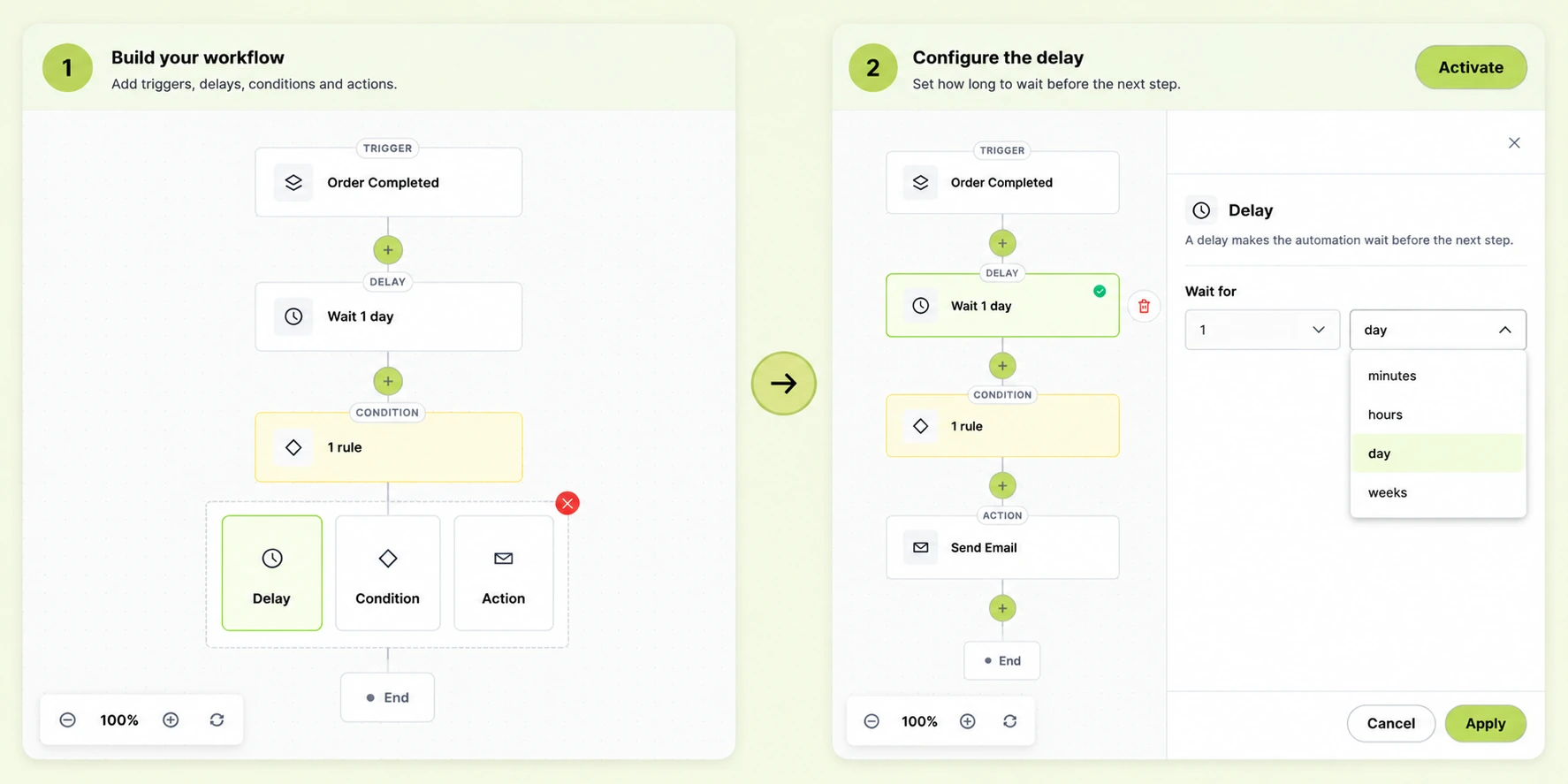
Click on “Delay” and decide how long you want to wait until you send the email.
Step 4: Add a Condition – Select “Order – Product Purchased”
After setting the delay, add a condition to decide which orders should continue through the automation. Without this condition, every customer entering the workflow could proceed to the next action, even if they purchased a different product. The condition makes the workflow specific to the product you want to target.
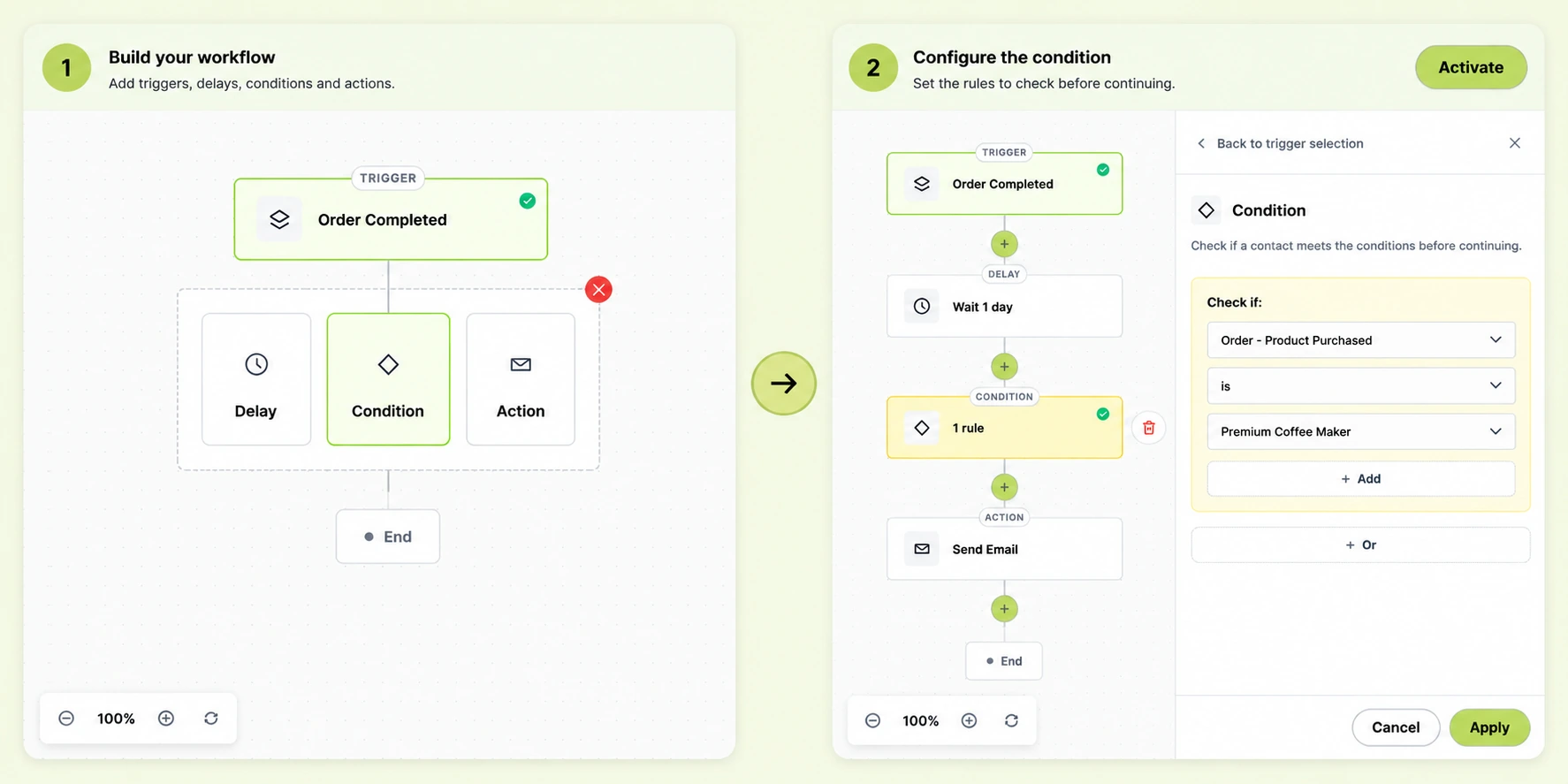
Choose Condition. Inside the Condition panel, find the Check if dropdown and select “Order – Product Purchased“. Set the operator to is, then choose the WooCommerce product you want to target. In our example, select Premium Coffee Maker.
Your condition should now look like this:
Order – Product Purchased → is → Premium Coffee Maker
Your automation now checks whether the selected product is included in the order. If the condition matches, the customer continues to the email action; if it doesn’t, the customer won’t proceed through this product-specific path.
The core workflow looks like this:
Order Complete → Delay → Condition [ Product Purchased is Premium Coffee Maker ] → Send Email
Step 5: Add the “Send Email” Action
Under the condition, add another step and choose “Send Email” from the available actions. This tells Virfice to send a message when the order meets your product condition. Configure the email using the fields displayed in the panel on the right, including the relevant email information and content.
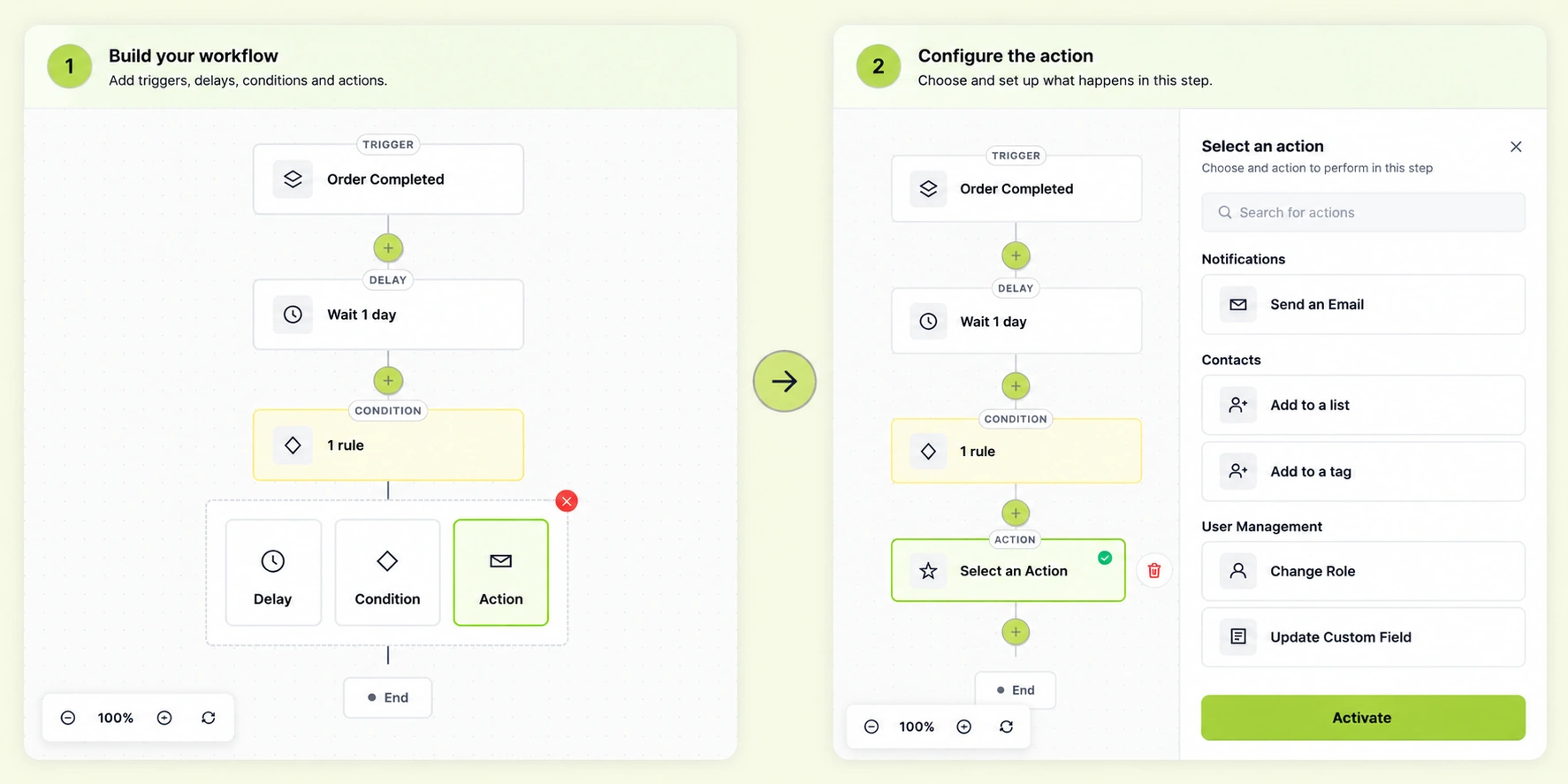
Once you have selected “Send email” as an action. You need to set up the email for the customers with all email information required. Fields are visible on the right side.
You now have the structure of your product-specific email automation. The next step is to decide what the customer should receive. Rather than sending another generic purchase confirmation, make the message useful for the product they bought.
Step 6: Create an Email Specifically for That Product
Suppose the customer purchased the Premium Coffee Maker. Instead of repeating the standard order confirmation that WooCommerce already sends, create a practical getting-started email that helps the customer use their new product. You could use a subject line such as Get the Most Out of Your New Coffee Maker and preview text such as A few tips to help you make a great first cup.
The email could begin with a short thank-you message, followed by a few helpful tips for the customer’s first brew:
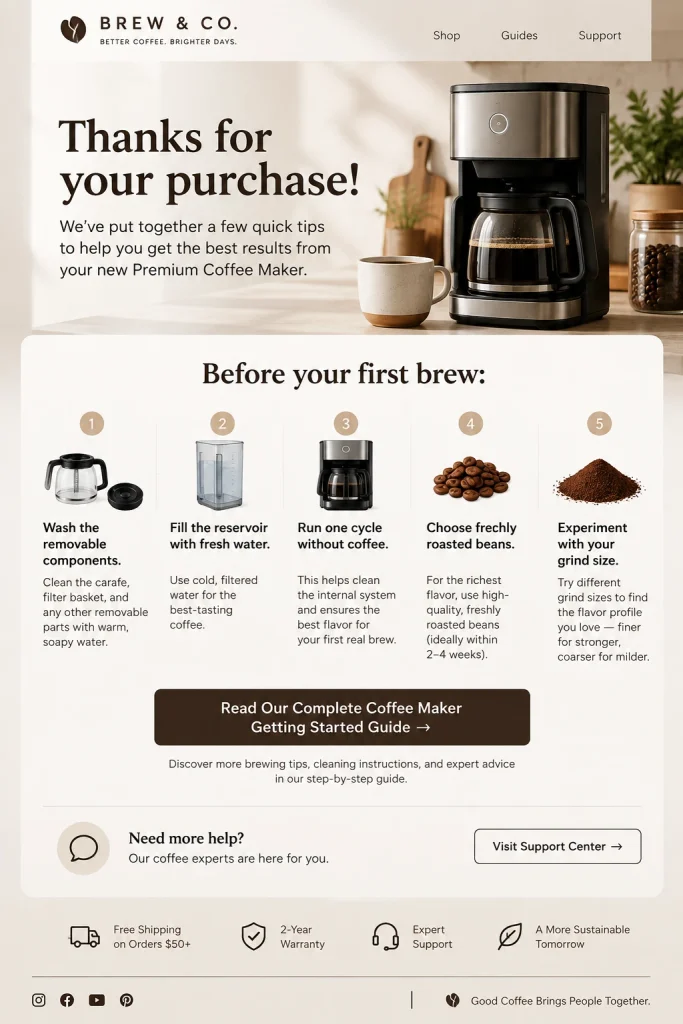
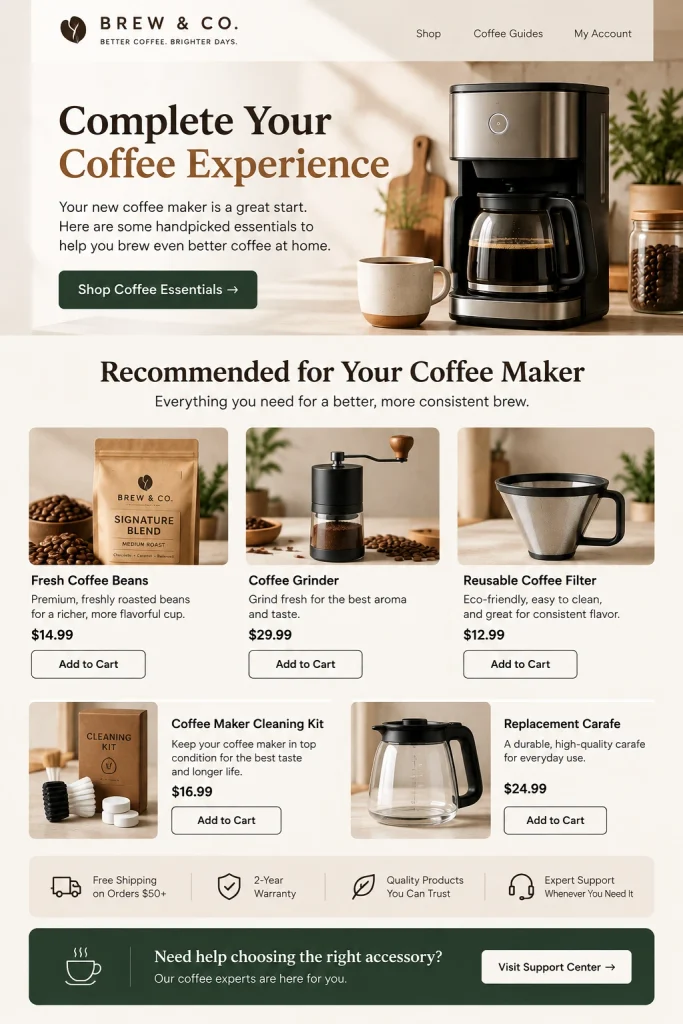
This kind of follow-up provides practical value instead of feeling like another promotional email. Once the customer has learned to use the product, you could send a separate email featuring related products that complement their purchase.
What Types of Emails Can You Send After a Specific Product Purchase?
There are plenty of ways to use product-based automation beyond a simple thank-you message. The best follow-up depends on the product, the customer’s likely needs, and the point they have reached in their customer journey.
1. Product Onboarding Email
An onboarding email is especially useful for products that require setup or have a learning curve. For example, when someone buys a smart security camera, you could send instructions for installing and configuring it. If they purchase a WordPress plugin, you could share a guide that explains how to install, activate, and configure the plugin. The goal is to help customers succeed with what they already purchased, rather than immediately trying to generate another sale.
For example:
Customer buys: Smart security camera
Automated email: How to install and configure your camera
Or:
Customer buys: WordPress plugin
Automated email: How to install, activate, and configure the plugin
The goal isn’t immediately generating another sale. It’s helping the customer succeed with what they already purchased.
2. Product Usage Tips
Some customers know how to get started but may not know how to get the most value from a product. A customer who buys an air fryer, for example, could receive an email with seven tips for getting crispier results. Someone who purchases running shoes might appreciate advice on breaking them in and using them comfortably. These helpful messages can improve the post-purchase experience without feeling like another sales pitch.
You could send:
Customer buys: Air fryer
Email: 7 tips for getting crispier results from your air fryer
Or:
Customer buys: Running shoes
Email: How to break in your new running shoes
These emails can strengthen the post-purchase experience without feeling like another sales pitch.
3. Care and Maintenance Instructions
Care and maintenance emails work particularly well for physical products that need regular cleaning or upkeep. If a customer buys leather shoes, you could send instructions for caring for the material. If they purchase an espresso machine, a follow-up could explain how and when to clean it. Sharing this information proactively can answer common customer questions before they become support requests. WooCommerce
For example:
Customer buys: Leather shoes
Email: How to care for your leather shoes
Or:
Customer buys: Espresso machine
Email: How and when to clean your espresso machine
Useful post-purchase information can also help answer common customer questions before they become support requests. WooCommerce
4. Cross-Sell Related Products
A purchase can also help you identify products that would complement what a customer already owns. For example, someone who buys a camera might appreciate recommendations for compatible lenses and accessories, while a customer who purchases a coffee maker could receive suggestions for coffee beans that work well with their machine. The key is relevance: don’t use every purchase as an excuse to promote an unrelated product. A good cross-sell should make the original purchase more useful or enjoyable.
For example:
Customer buys: Camera
Email: Recommended lenses and accessories for your camera
Or:
Customer buys: Coffee maker
Email: Coffee beans that work particularly well with your machine
The important thing is relevance.
Don’t turn every purchase into an excuse to immediately push another unrelated product.
A good cross-sell should make the original purchase more useful.
5. Ask for a Product Review
Customers who have purchased and had time to use a product can be good candidates for a review request. Instead of sending the request immediately, add a suitable delay so they have time to form an opinion.
For example:
Product Purchased
↓
Wait 10 days
↓
Send Review Request
The ideal delay depends on the product.
Someone buying software may be able to form an opinion within a few days. Someone purchasing skincare may need several weeks. A customer buying furniture may need enough time for delivery and regular use.
The timing should reflect the actual customer experience.
Test Your Product Automation Before Activating It
Before activating an automation for your entire store, test it to make sure the right customers receive the right emails. Place a test order containing the target product and check that the correct trigger fires, Virfice detects the purchased product, the Product Purchased condition evaluates correctly, the customer reaches the Send Email action, and the email is delivered with working content and links.
Then run a second test using a different product. That customer should not receive the product-specific email. If your automation uses several AND/OR conditions, test those combinations as well. You need to verify both sides of the workflow: the right customer receives the email, and the wrong customer doesn’t. Once you’re satisfied with the results, click Activate.
Product-Based Email Automation Ideas
Once you understand the basic workflow, you can create many different WooCommerce automations based on the products customers purchase.
| Customer purchases | Automated email |
| Software | Getting-started guide |
| Online course | Course onboarding |
| Coffee maker | Brewing guide |
| Skincare product | How-to-use instructions |
| Electronics | Setup tutorial |
| Furniture | Assembly/care guide |
| Running shoes | Care and usage tips |
| Consumable product | Replenishment reminder |
| Camera | Recommended accessories |
| Subscription-related product | Onboarding information |
| Premium product | VIP follow-up |
| Gift product | Gift-related instructions |
The goal isn’t simply to automate more emails. It’s to use purchase information to determine what would be most useful to each customer next. When the message matches the product and the customer’s needs, your follow-up can feel more personal and helpful.
Turn Every Product Purchase Into a Better Customer Experience
Getting the sale shouldn’t be the end of the customer journey. In many cases, it’s the beginning of the most important part. After buying a product, customers may need help setting it up, learning how to use it, maintaining it, discovering complementary products, or deciding whether to buy from you again.
Instead of manually tracking who purchased what, Virfice can use WooCommerce purchase data to determine which customers should receive which emails. Start with a trigger such as Order Complete, add Order – Product Purchased as your condition, choose the product, and add your email action. From there, you can expand the workflow with additional conditions and follow-up steps to create more targeted customer journeys.