Coupons are usually treated as a way to encourage purchases, but the moment a customer uses a coupon can also tell you something valuable about that customer. With Automate Emails for Specific Coupon Codes, you can send targeted emails based on the coupons customers use. Someone who purchases with your WELCOME20 coupon may be a first-time buyer, while a customer using VIP25 might be part of a special promotion. Similarly, someone using an influencer-specific code can help you identify which campaign brought the sale.
Instead of letting that information disappear into your WooCommerce order history, you can use it to trigger a relevant follow-up email automatically. With Virfice, you can create a WooCommerce email automation that checks whether a particular coupon was used and sends an email when the order matches your condition.
In this guide, we’ll build the following workflow:
Order Complete → Delay → Coupon Used [Specific Coupon] → Send Email
Why Automate Emails for Specific Coupon Codes?
WooCommerce already gives store owners considerable control over coupons. You can create percentage, fixed-cart, and fixed-product discounts and configure restrictions based on products, categories, spending amounts, customer emails, and usage limits.
But what happens after someone uses the coupon? That’s where coupon-based email automation becomes useful.
Imagine you’re running a promotion with the coupon WELCOME20, offering customers 20% off their purchase. When a customer uses this code to place an order, you could automatically send a follow-up email instead of including them in the same marketing sequence as everyone else.
For example, the email might say:
Thanks for placing your first order! We hope you enjoy your purchase. Here are a few things you might want to explore next.
The same approach works for VIP promotions, affiliate campaigns, seasonal discounts, event coupons, and loyalty offers. Whenever a coupon provides useful context about a purchase, you can use it to create a more relevant customer journey without manually checking orders and sending emails.
What You’ll Need to Automate Emails for Specific Coupon Codes
Before creating the automation, make sure you have WordPress, WooCommerce, Virfice, a WooCommerce coupon, and a working email-sending configuration for Virfice.
If you haven’t created your coupon yet, navigate to Marketing → Coupons in your WordPress dashboard. WooCommerce lets you configure the discount amount, expiration date, usage restrictions, usage limits, eligible products and categories, and other rules. You can find more details in the WooCommerce coupon management documentation.
For this tutorial, let’s assume we’ve already created the following coupon:
- Coupon: WELCOME20
- Offer: 20% off
Now let’s tell Virfice what to do when someone uses this coupon.
Step 1: Create a New Automation in Virfice
From your WordPress dashboard, navigate to Virfice → Automations and create a new automation. Give it a descriptive internal name so you can easily identify its purpose when you return to your automation dashboard. For this example, we’ll use WELCOME20 Customer
Follow-Up.
A clear naming convention becomes especially helpful when you have multiple automations running for different promotions. You might eventually have separate workflows for Black Friday coupon follow-ups, VIP customer thank-you emails, influencer coupon campaigns, and first-purchase discount follow-ups.
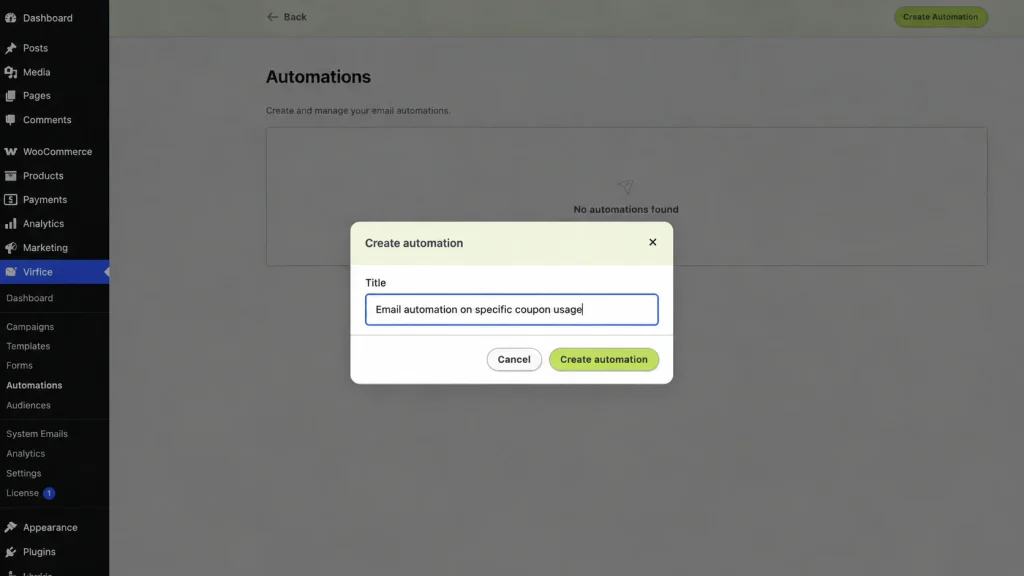
Now open the automation builder to configure your workflow.
Step 2: Select “Order Complete” as the Trigger
Every automation needs an event that starts the workflow. For this example, choose Order Complete as the trigger so the automation begins when a WooCommerce order reaches the Completed status.
Your workflow starts with:
Order Complete →

It’s important to choose a trigger that matches the purpose of your email. WooCommerce orders can move through statuses such as Pending payment, Processing, Completed, Cancelled, and Refunded, depending on their state. Learn more about WooCommerce order statuses.
For a follow-up that should only be sent after an order is completed, Order Complete is a suitable starting point. If your message needs to be sent at an earlier stage, such as immediately after an order is created, choose the appropriate trigger available in Virfice.
Step 3: Add a Delay to Decide When to Send the Email
After selecting your trigger, click the + button underneath it and choose Delay. Set how long Virfice should wait before moving to the next step. The right timing depends on your campaign: you might send a welcome message shortly after the purchase, while a product recommendation or follow-up offer may be more appropriate after the customer has had time to use their order.
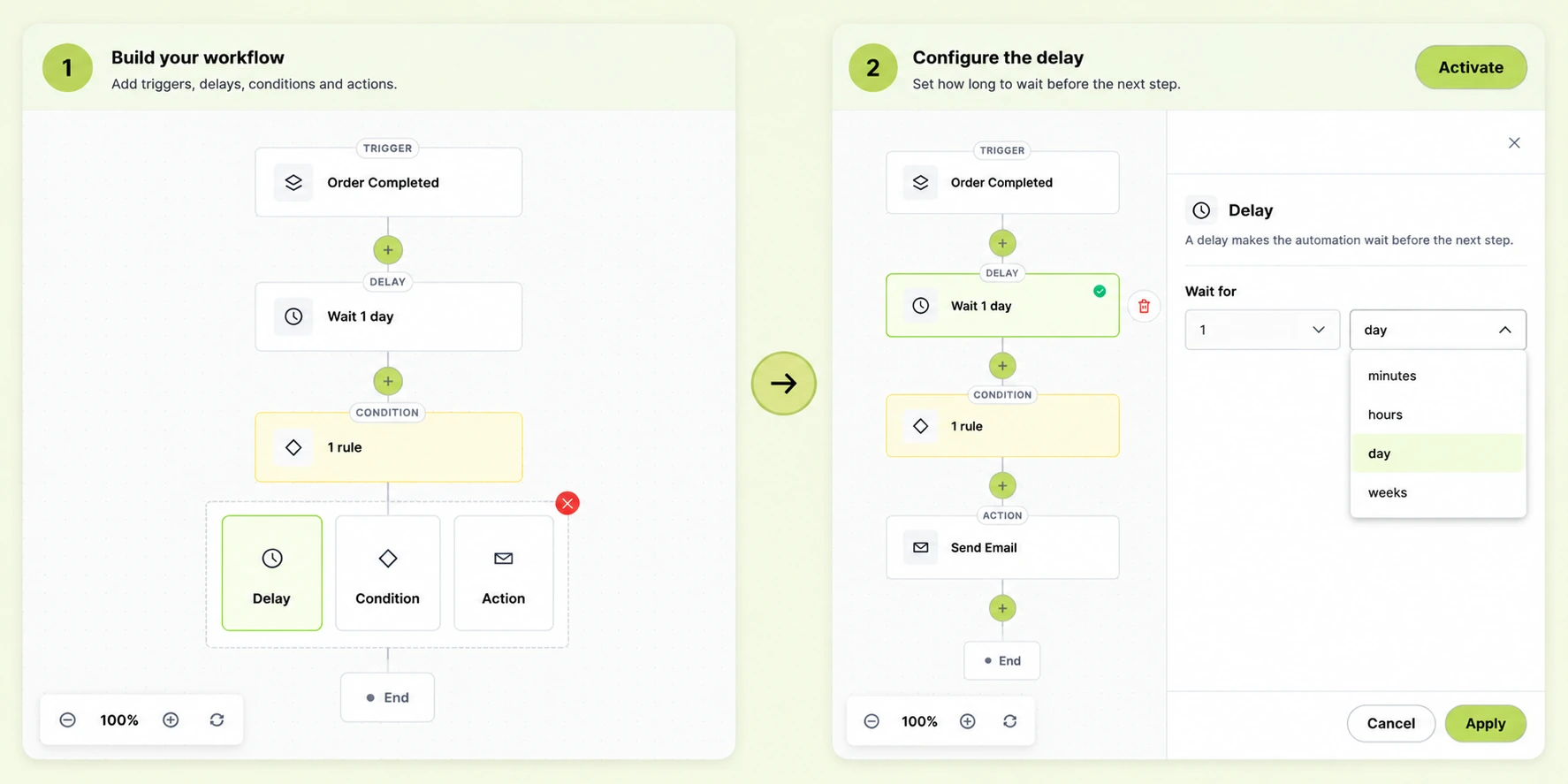
Step 4: Add a Condition: Select “Order – Coupon Used”
Now it’s time to make the automation more targeted. Click the + button underneath the trigger or delay and add a Condition. This allows Virfice to evaluate each order and determine which customers should continue through the workflow.
Inside the Condition panel, find the Check if dropdown and select Order – Coupon Used. Then choose the comparison operator is and select the coupon you want to target. For our example, we’ll choose WELCOME20.
Your condition should now look like this:
Order – Coupon Used → is → WELCOME20
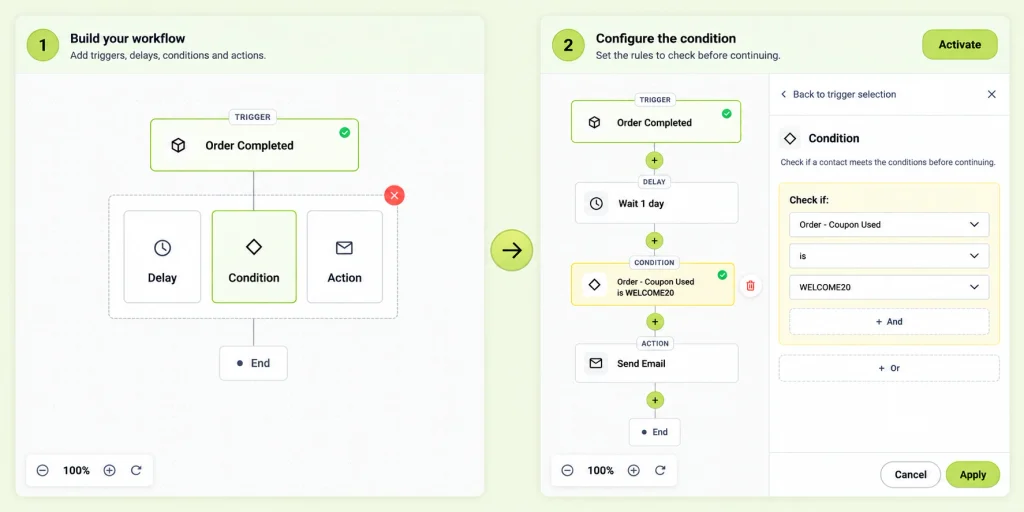
This is the key part of the workflow. Virfice checks the coupon associated with the order, and only orders that match the condition proceed to the email action. You don’t need to create a separate customer list or manually tag everyone who used the promotion just to send this particular follow-up.
The workflow now follows this logic:
Order Complete → Delay → Coupon Used [WELCOME20] → Send Email
Step 5: Add More Conditions When Necessary
Sometimes coupon usage alone isn’t specific enough. Suppose you’re running a WELCOME20 promotion but want to send a different email depending on what the customer purchased. You can combine the coupon condition with another condition using AND, allowing the automation to continue only when both conditions are satisfied.
For example:
Coupon Used is WELCOME20
AND
Product Purchased is Running Shoes
You could also target customers who used a VIP coupon and spent more than a specific amount:
Coupon Used is VIP20
AND
Order Total is above $100
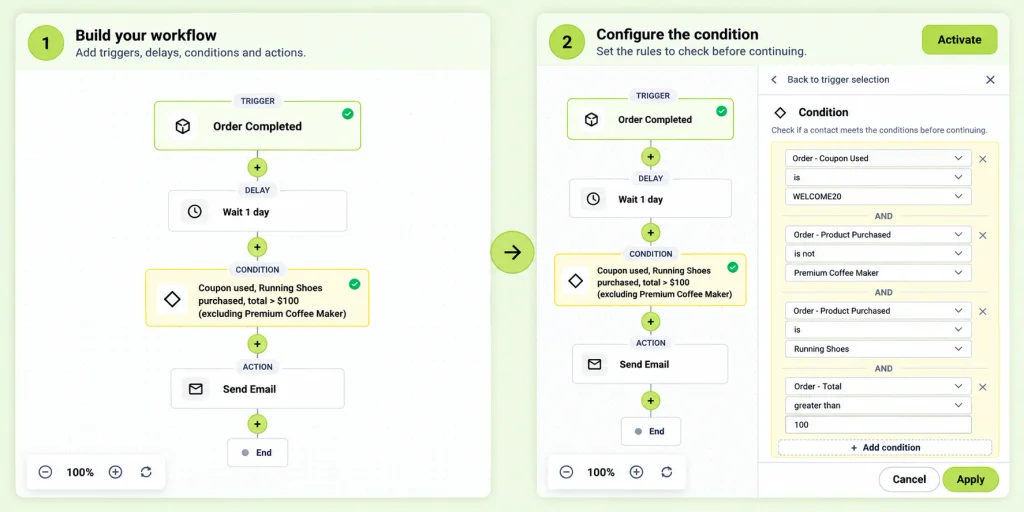
These combinations give you greater control over who enters a particular follow-up journey. Depending on the automation you’re building, Virfice can use conditions based on WooCommerce and customer information, including products, product categories, order totals, payment methods, billing or shipping countries, user roles, tags, lists, custom fields, and coupon usage.
You can also use OR when multiple alternatives should qualify. For example, if you want to include customers who used either of two coupons from the same promotion, your logic could be:
Coupon Used is BLACKFRIDAY
OR
Coupon Used is CYBERMONDAY
This approach lets you group related coupon campaigns into a single automation rather than creating a separate workflow for every code.
Step 6: Add the “Send Email” Action
Once you’ve defined the coupon condition, click the next + button and select Send Email. This action tells Virfice to send the message when an order meets your specified conditions.
Configure the email details and content in the available settings panel.
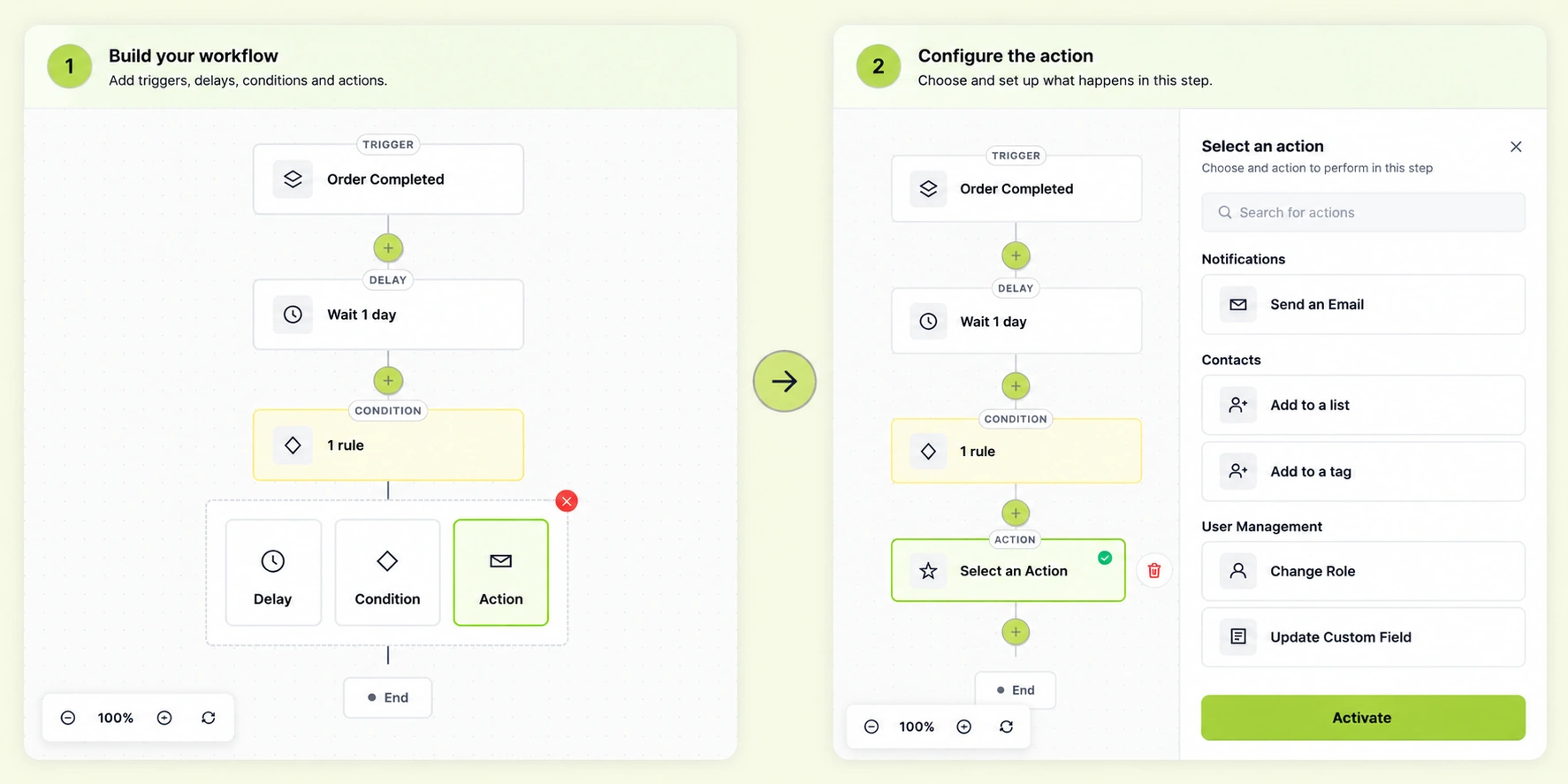
Your automation should now follow this structure:
Order Complete → Condition: Order – Coupon Used is WELCOME20 → Send Email → End
With the trigger, condition, and action configured, you’re ready to create the email customers will receive.
Practical Ways to Automate Emails for Specific Coupon Codes
You can automate emails for specific coupon codes to make your WooCommerce follow-ups more relevant to each customer. Coupon-based automation becomes particularly useful when different codes represent different customer intentions, promotional offers, or acquisition sources. By tailoring your follow-up to the coupon used, you can create a more relevant experience for each group of customers.
- Welcome coupon follow-up: If you offer WELCOME10 to new shoppers, send customers who use it a welcome message introducing your brand and setting expectations for future communication.
- Influencer or affiliate campaigns: Imagine giving a creator the code SARAH20. Customers who use that code can receive a follow-up designed specifically for the campaign, keeping their post-purchase experience aligned with the offer that brought them to your store.
- VIP promotions: Customers using a private VIP25 coupon could receive a personalized thank-you email or information about additional loyalty benefits.
- Event campaigns: If you distribute WORDCAMP20 during an event, customers who use it could receive a campaign-specific follow-up instead of your standard promotional message.
- Seasonal promotions: Coupons such as BLACKFRIDAY, CYBERMONDAY, or HOLIDAY20 can trigger follow-up emails relevant to the promotion and the customer’s purchase.
- Product-specific promotions: Combine Coupon Used with Product Purchased or Product Category to send an email tailored to both the offer and the product the customer bought.
Test the Automation Before Activating It
Before sending the automation to real customers, test the complete workflow to make sure everything works as expected. When you Automate Emails for Specific Coupon Codes with Virfice, create a test order using the target coupon and confirm that the trigger fires, Virfice recognizes the correct Coupon Used value, the order passes the condition, the email action runs, and the message reaches the intended address. Also check the subject line, preview text, links, personalization, and email layout.
Then place another test order without the coupon. That order should not receive the coupon-specific email. Testing both cases is important because you need to verify not only that Virfice sends the email when it should, but also that it doesn’t send it when it shouldn’t.
Once you’ve confirmed that the workflow behaves correctly, activate the automation.
The Final WooCommerce Coupon Automation Workflow
The finished setup for Automate Emails for Specific Coupon Codes is straightforward. Select Order Complete as the trigger, add a delay if needed, and configure a condition using Order – Coupon Used. Set the operator to is, select your target coupon, and add the Send Email action.
Your workflow will look like this:
Trigger: Order Complete
↓
Delay: 1 day (optional, based on your campaign)
↓
Condition: Order – Coupon Used
↓
Operator: is
↓
Coupon: Your selected coupon
↓
Action: Send Email
↓
End
That’s it. Qualifying WooCommerce orders can now move through the workflow automatically, allowing Virfice to send the appropriate follow-up without requiring you to check each order manually.
Turn a Discount Into a Customer Journey
A coupon doesn’t have to be the end of a marketing campaign. It can be the beginning of the next stage of your relationship with the customer. With Automate Emails for Specific Coupon Codes, you can turn coupon usage into an opportunity to build stronger customer relationships. When someone uses a particular coupon, you already know something about the context behind their purchase. They might have responded to your welcome offer, purchased through an affiliate, participated in a seasonal promotion, or used a benefit reserved for VIP customers.
By combining coupon usage with order totals, products, categories, customer data, and other conditions, you can create more targeted WooCommerce email journeys without treating every customer exactly the same.