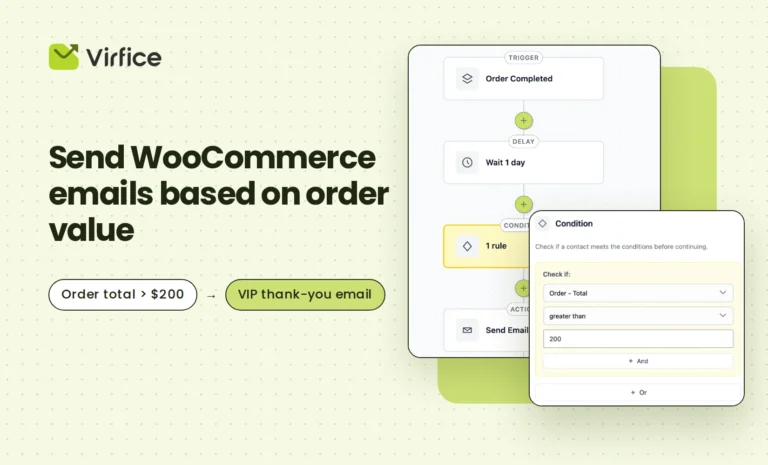
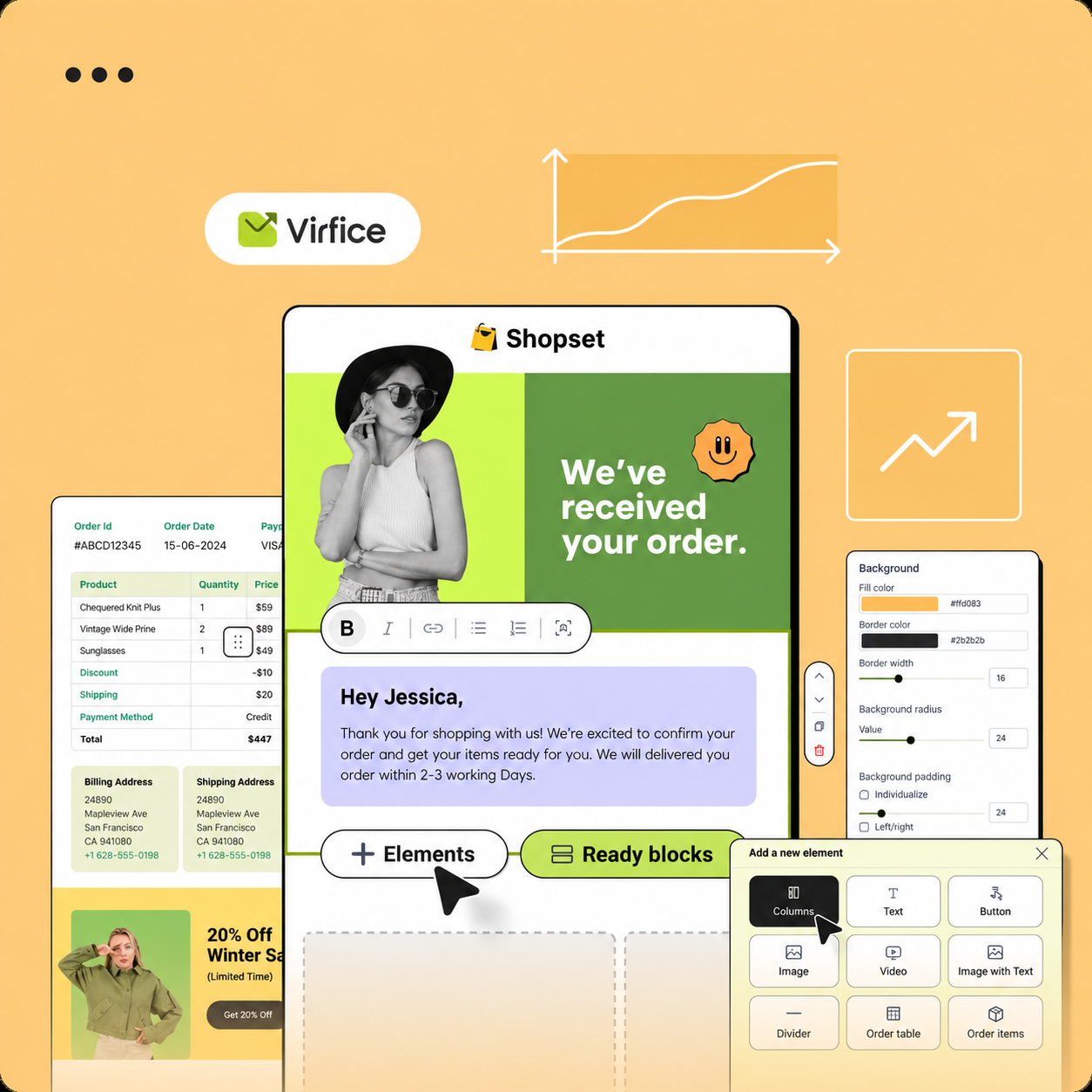
A customer who buys a coffee machine and one who buys a skincare set need very different follow-up emails. With Virfice, you can send WooCommerce emails based on product category and personalize post-purchase messages to match each customer’s purchase. For example, a coffee machine buyer might receive a coffee brewing guide, while a skincare customer gets instructions on how to use their products and in what order.
Yet most WooCommerce stores send the same post-purchase email to everyone. If you sell dozens or hundreds of products, setting up a separate email for each one isn’t realistic either.
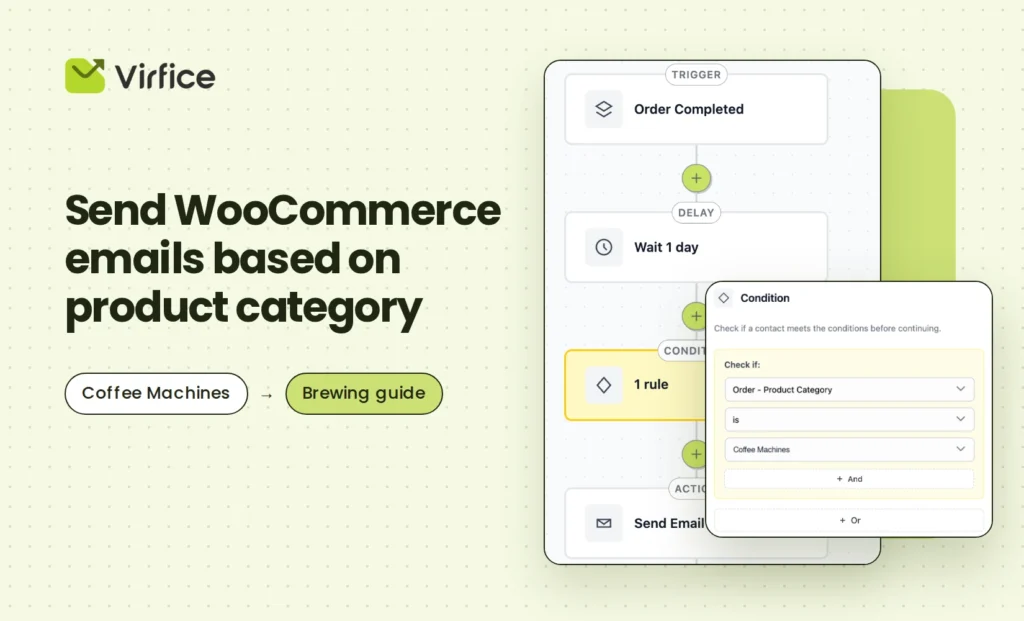
With Virfice’s WooCommerce email automation, you can send WooCommerce emails based on product category. One automation covers every product in a category, including products you add later. The workflow looks like this:
Order Completed → Delay → Condition [Order – Product Category] → Send Email
In this guide, you’ll learn how to send WooCommerce emails based on product category, step by step, and explore practical follow-up email ideas for different types of products.
Why Send WooCommerce Emails Based on Product Category?
WooCommerce sends transactional emails for every order, but they only confirm the transaction. They don’t help the customer use what they bought, and they don’t suggest what to buy next.
Product category tells you a lot about what a customer needs after a purchase. Someone buying from your “Coffee Machines” category needs setup and brewing tips. Someone buying from “Coffee Beans” will run out in a few weeks and may need a reorder reminder. Someone buying from “Gifts” may want wrapping or delivery information.
Category-based emails are relevant to the customer without being written for every single product. That makes them one of the most practical ways to personalize post-purchase emails in WooCommerce.
Product category vs. specific product: which should you use?
Virfice also lets you send automated emails to customers who buy a specific product. Both are useful, but they solve different problems.
| Specific product | Product category | |
|---|---|---|
| Best for | A flagship product that needs its own guide | Groups of similar products |
| Number of automations | One per product | One per category |
| New products | Need a new automation | Covered automatically |
| Email content | Very specific to one item | Useful for the whole group |
If you sell many products, start with categories. Then add product-specific automations only for your best sellers or most complex products.
How to Send WooCommerce Emails Based on Product Category
With Virfice, you can automate personalized post-purchase emails for customers who purchase products from specific WooCommerce categories. Before setting up your automation to send WooCommerce emails based on product category, make sure you have the following:
- WordPress
- WooCommerce, with your products organized into categories
- Virfice (free or Pro)
- Email sending configured through Virfice’s built-in SMTP
For this tutorial, let’s say your store has a category called Coffee Machines. Our goal is to send every customer who buys from that category a brewing guide one day after their order is completed. We’ll build this workflow:
Order Completed → Wait 1 day → Condition [Order – Product Category is Coffee Machines] → Send Email
Let’s build it.
Step 1: Create a New Automation in Virfice
In your WordPress dashboard, go to Virfice → Automations and create a new automation. Give it a clear name, so you can recognize it later.

For this example, call it Coffee Machines – Brewing Guide.
Step 2: Choose “Order Completed” as the Trigger
Select Order Completed as the trigger. The workflow starts whenever a WooCommerce order reaches the Completed status.

Virfice can then check which categories the products in that order belong to.
Step 3: Add a Delay
Click the + icon under the trigger and select Delay. For this example, set it to 1 day.
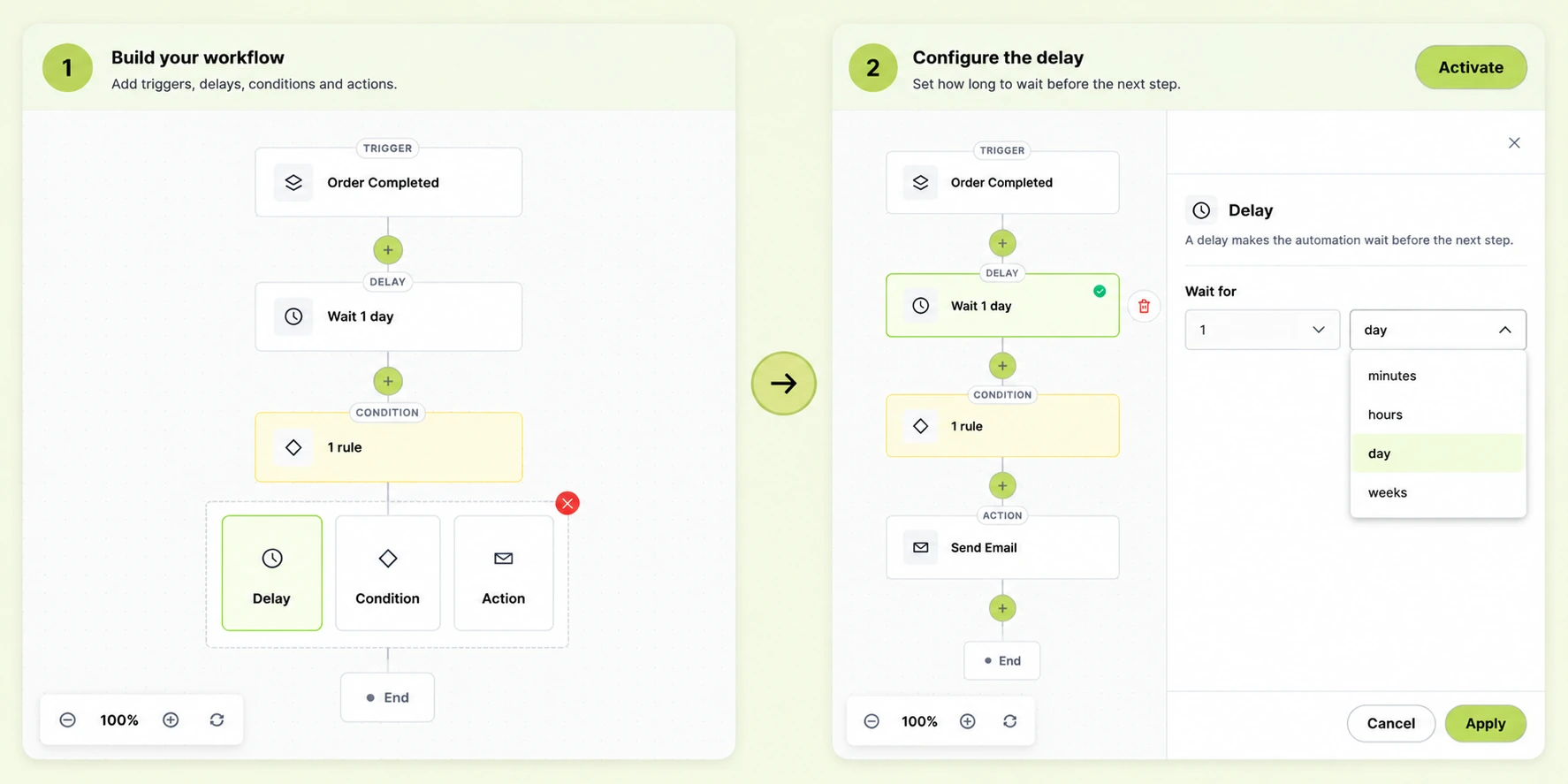
The right delay depends on the category. A setup guide works best soon after delivery, while a reorder reminder for consumables should wait until the customer is close to running out.
Step 4: Add a Condition – Select “Order – Product Category”
Click the + icon under the delay and choose Condition. Without it, every customer who completes an order would get the brewing guide, even if they bought a T-shirt.
In the Condition panel on the right, open the Check if dropdown and select Order – Product Category. Set the operator to is. Then open Select category and choose the category you want to target. In our example, select Coffee Machines.

Your condition should now look like this:
Order – Product Category → is → Coffee Machines
If the order contains a product from that category, the customer continues to the email. If not, the automation ends for them.
Want to go further? Click + Or to include a second category, such as Espresso Machines, in the same automation. Click + And to combine rules, for example a category with an order value condition to target only large orders from that category.
Step 5: Add the “Send Email” Action
Click the + icon under the condition and select Send Email. Fill in the subject line, preview text and content in the panel on the right.
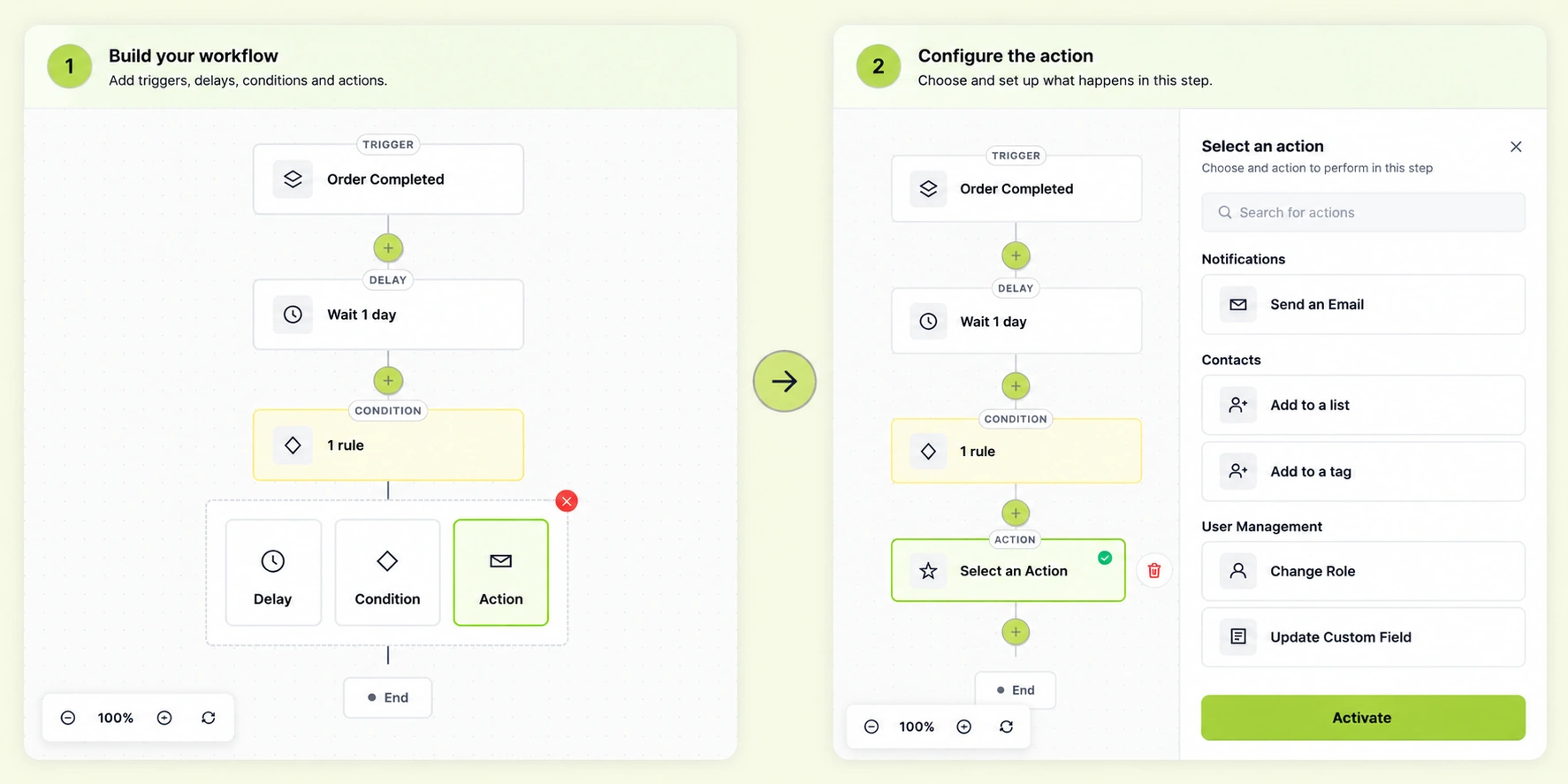
Your automation is now complete:
Order Completed → Wait 1 day → Condition [Order – Product Category is Coffee Machines] → Send Email
Step 6: Write an Email That Fits the Category
The email should help with anything the customer bought from the category, not one specific product. Design it with the drag-and-drop email builder, or start from one of the ready-made templates.
For the Coffee Machines category, you could use a subject line such as Your guide to a better first cup and preview text such as Five quick tips for your new coffee machine.
The email could include:
- A short thank-you for the order
- A few brewing tips that apply to any machine in the category
- A link to a cleaning and descaling guide
- A suggestion for coffee beans that work well with home machines

Keep the tips general enough to fit every product in the category. For product-specific details, use a separate product-specific automation.
What Types of Emails Can You Send Based on Product Category?
When you send WooCommerce emails based on product category, you can tailor automated post-purchase emails to the products customers buy and their specific needs. For example, you can send product setup guides, usage instructions, complementary product recommendations, or category-specific offers. The right WooCommerce email automation depends on what the products in a category have in common and what customers typically need after purchasing them.
Care and Maintenance
Products made from the same material often require similar care and maintenance. You can send WooCommerce emails based on product category to share relevant care instructions, cleaning tips, and maintenance guides that help customers get more value from their purchases and keep their products in good condition.
Category: Leather goods
Email: How to clean and protect leather
Or:
Category: Cast iron cookware
Email: How to season and care for cast iron
Replenishment Reminders
Consumable products are ideal for automated replenishment reminders because customers eventually need to buy them again. When you send WooCommerce emails based on product category, you can remind customers to restock products such as skincare essentials, coffee beans, supplements, or household supplies. These timely follow-up emails can encourage repeat purchases, improve customer retention, and generate more recurring sales.
Order Completed ↓ Wait 25 days ↓ Condition: Order – Product Category is Coffee Beans ↓ Send “Running low? Reorder your favorites” email
Set the delay based on how long a typical purchase lasts.
Cross-Sell Related Categories
A purchase from one product category often creates an opportunity to recommend products from another. For example, a customer who buys a camera may also need lenses, memory cards, or a camera bag. When you send WooCommerce emails based on product category, you can automate relevant cross-sell recommendations that complement previous purchases, increase average order value, and encourage customers to return to your store.
Category: Cameras
Email: Accessories that get more out of your new camera
Keep it relevant. A good cross-sell makes the original purchase more useful, not just bigger.
Test Your Category Based WooCommerce Automation Before Activating It
Before you click Activate, place a test order with a product from your target category. Check that the trigger fires, the delay runs, the condition matches, and the email arrives with working content and links.
Then place a second test order with a product from a different category. That customer should not receive the email.
Pay attention to two common edge cases:
- Products in more than one category. In WooCommerce, a product can belong to several categories. Check that it triggers the emails you expect, and only those.
- Orders with products from several categories. A customer who buys a coffee machine and a T-shirt may enter more than one category automation. Make sure the emails still make sense together.
Once both sides work, so the right customers get the email and the wrong ones don’t, click Activate.
Product Category Email Automation Ideas
Once you know the workflow, you can build a WooCommerce follow-up email for each of your main categories.
| Product category | Automated email | Suggested delay |
|---|---|---|
| Coffee machines | Brewing guide | 1 day |
| Coffee beans or tea | Reorder reminder | 3–4 weeks |
| Skincare | How-to-use routine | 2 days |
| Supplements | Refill reminder | 3–4 weeks |
| Electronics | Setup tutorial | 1 day |
| Furniture | Assembly and care guide | 3 days |
| Clothing | Care instructions and styling ideas | 5 days |
| Pet food | Reorder reminder | 3 weeks |
| Cameras | Recommended accessories | 7 days |
| Gifts | Gift wrapping and delivery info | Immediately |
| Online courses | Course onboarding | Immediately |
Adjust the delays to your delivery times and how long products typically last.
One Automation for Every Product in a Category
Category-based emails give you most of the benefits of personalized follow-ups without the work of building one for every product. Customers get help that matches what they bought, and you get more repeat purchases from the categories that sell again.
With Virfice, you can send WooCommerce emails based on product category in a few minutes. Start with the Order Completed trigger, add a delay, set Order – Product Category as your condition, and add your email. From there, you can combine categories with other conditions, such as order value, specific products or coupon codes. Track opens and clicks in Virfice analytics to see which categories respond best.
Because Virfice runs on your own WordPress site, your customer and order data stays with you, with no monthly bill that grows with your list. If you currently pay for Mailchimp or Omnisend, use the email marketing cost calculator to see how much you could save.