
Choosing the right hosting provider is the foundation of your WordPress site and, ultimately, your business. It impacts everything from speed and uptime to security and scalability. When it comes to premium managed WordPress hosting, Kinsta and WP Engine are two of the biggest names in the industry. Both are known for their lightning-fast performance, developer-friendly tools, and top-tier support, but they take different approaches under the hood. In recent times, many users have started moving away from WP Engine, seeking more flexible and performance-focused alternatives like Kinsta.
If you’ve been using WP Engine and starting to feel limited, whether it’s the performance, pricing structure, resource flexibility, support or overall control, you’re not alone. More and more WordPress users are exploring Kinsta as a modern alternative, thanks to its cloud-powered infrastructure, intuitive dashboard, and transparent performance-focused approach.
So, which one should you actually trust with your website and is it worth making the switch?
In this guide, we’ll not only compare Kinsta and WP Engine across performance, pricing, and usability, but also walk you through how to smoothly migrate your site to Kinsta. So you can upgrade your hosting without the usual risks or headaches.
Kinsta: Premium Managed Hosting for WordPress
Kinsta is a premium managed WordPress hosting platform that delivers exceptional performance without limits. Built on a powerful cloud infrastructure with next-generation architecture and high-performing servers, it provides every website with dedicated resources for unmatched speed and reliability. All plans come with enterprise-grade security including Cloudflare Enterprise, WAF, and advanced DDoS protection.
“Kinsta has been a game-changer for us, especially after our experience with WP Engine. The speed improvements are clear, and having access to such knowledgeable support 24/7 has transformed our workflow. Kinsta is the superior choice for serious WordPress users.”
Katie Keith, Co-founder at Barn2 Plugins
Customers also enjoy direct access to seasoned WordPress engineers 24/7/365 via live chat in 8 different languages, with average response times under two minutes. Perfect for businesses, agencies, and developers seeking fast, secure, and expertly supported WordPress hosting.
WP Engine: Managed WordPress Hosting
WP Engine is a popular managed WordPress hosting platform known for its reliability and performance for many years. Built on a multi-cloud infrastructure with proprietary EverCache technology and a global CDN, it offers solid speed and uptime for most websites. Plans include strong security features such as managed firewalls, automated updates, threat detection, and optional Cloudflare-powered WAF and DDoS protection on higher tiers.
Customers receive 24/7 WordPress support along with tools like staging environments and daily backups. It works well for businesses and agencies, but many are now switching to newer platforms for faster dedicated resources, broader global edge caching, and more responsive expert support.
Kinsta vs WP Engine: Head-to-Head Comparison (2026)
Kinsta and WP Engine are two of the top managed WordPress hosting platforms. Both deliver excellent performance and support, but they differ significantly in infrastructure, including features, scalability, and value.
Here’s a clear, up-to-date side-by-side comparison based on the latest information.
Kinsta vs WP Engine Comparison Table
| Feature | Kinsta | WP Engine | Winner |
| Infrastructure | Cloud infrastructure and high-CPU servers | Mixed (Google Cloud, AWS, Azure) | Kinsta |
| Global Data Centers | 27 locations | 13 locations | Kinsta |
| Free Expert Migrations | Unlimited, expert-handled | DIY plugin (limited expert help) | Kinsta |
| Edge Caching | Full-page caching, 300+ PoPs | Limited (static assets only by default) | Kinsta |
| Cloudflare Enterprise | Included (WAF + CDN) on all plans | CDN included; WAF is paid add-on | Kinsta |
| APM Tool | Free on all plans | Add-on on higher tiers only | Kinsta |
| Uptime Monitoring | Every 3 minutes | Add-on on higher plans | Kinsta |
| Backups | 6 types, 14–30 days retention + external | 4 types, no external or hourly | Kinsta |
| Resource Limits | Visits and bandwith-based pricing | Bandwidth + storage limits | Kinsta |
| Multilingual Dashboard | 8 languages | English only | Kinsta |
| Starting Price | $35/month (first month free on select plans) | $30/month | Tie |
| Support | 24/7 WordPress experts, <2 min average response | Good, but slower on lower plans | Kinsta |
| Staging Environments | Free on all plans | Available | Tie |
Performance & Infrastructure
Kinsta runs every site on isolated containers powered by next-generation cloud network and high-performance servers. This delivers consistent speed even under heavy load, especially for dynamic content like WooCommerce or membership sites. Kinsta also includes powerful Edge Caching across 300+ global points of presence.
WP Engine uses a multi-cloud approach and offers strong performance, but high-performance VMs are often reserved for higher-tier plans. Edge caching is more limited out of the box.
Winner: Kinsta for raw speed and consistency across all plans.
Features & Tools
Kinsta includes more premium features by default:
- Built-in Application Performance Monitoring (APM)
- Full Cloudflare Enterprise integration (WAF + DDoS protection)
- Advanced backup options
- Better resource isolation
WP Engine shines with strong developer tools and its ecosystem (including Genesis themes legacy value), but many advanced features require higher plans or add-ons.
Winner: Kinsta for better value and included features.
Pricing & Value
- Kinsta: Starts at $35/month. Plans scale based on visits or server bandwidth, storage, and sites. Generous resources and almost everything included.
- WP Engine: Starts at $30/month (Startup plan). Can become expensive quickly as you add sites, bandwidth, or premium add-ons.
Kinsta often provides better long-term value because fewer features are locked behind paywalls.
Support & Security
Both offer 24/7 support, but Kinsta is widely praised for human-only expert support with extremely fast response times (under 2 minutes on average) and availability in 8languages.
Security is enterprise-grade on both, but Kinsta includes Cloudflare Enterprise WAF and DDoS protection on every plan.
Who Should Choose Which?
Choose Kinsta if you want:
- Maximum performance and global reach
- Free unlimited expert migrations
- More features included without add-ons
- Superior support and modern dashboard
- Best for agencies, eCommerce, and growing businesses
Choose WP Engine if you want:
- Familiar ecosystem and tools
- Slightly lower entry price for very small sites
- Strong focus on marketing/agency workflows
Once you have decided to migrate from WP Engine to Kinsta. It’s time to know how to do it.
How to Migrate Sites from WP Engine to Kinsta
Migrating from WP Engine to Kinsta is so easy and hassle free as there are several migration options. You can handle the migration yourself or have Kinsta’s team perform the migration for them.
Kinsta provides free migrations for all new customers. Site owners can choose to migrate their site immediately, scheduling the migration for a more convenient time. For users with multiple WordPress sites, Kinsta’s support team can also handle bulk migrations upon request.
In this tutorial today, we will show you how to migrate your WP Engine site to Kinsta through Kinsta’s free migration. So, let’s get started
Select a Kinsta Hosting Plan That Fits Your Website’s Needs
You need to purchase a Kinsta plan that goes well with your current website’s requirements hosted on WP Engine. This is the recommended first step before starting the migration process. Choosing the right Kinsta plan ensures your website has adequate resources, performance, and features from the moment it goes live on Kinsta.
There are multiple plans and types of hosting available on Kinsta. You may ask for help on live chat if you need suggestions on that.
Sign in to Kinsta Account and Request a Free Migration
Once you have purchased the right Kinsta plan, you need to sign in to your Kinsta Account. On your Kinsta dashboard, you will see “Request a Free Migration”. Click on that to go ahead.
Choose the Type of Migration You Want
Kinsta offers flexible migration options: users can choose to migrate their site as soon as possible (with prior notification but no specific approval required), schedule it for a specific date (subject to Kinsta’s confirmation), or opt for the expedited migration, which completes the process within 8 hours for $49 (Monday–Friday, 9 AM–11 PM UTC, with a full refund if the deadline is missed). Kinsta provides unlimited free migrations from all major hosts, including WP Engine.
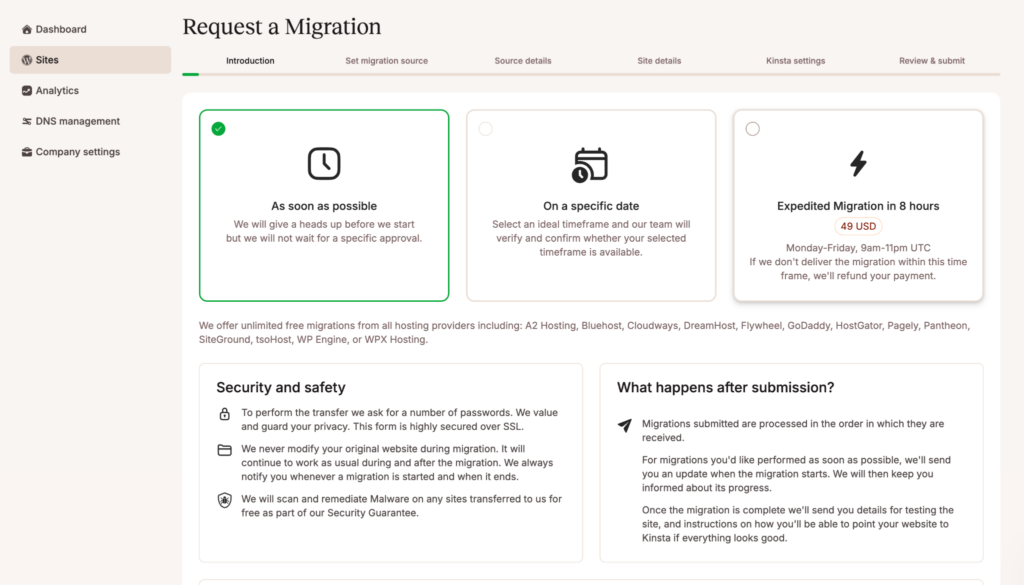
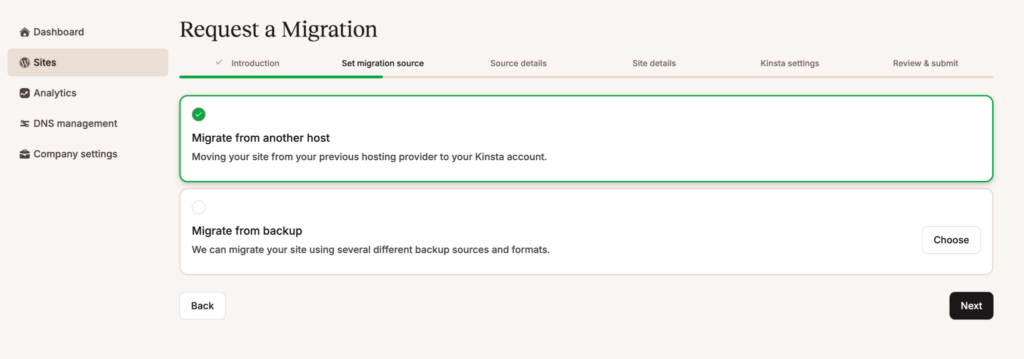
Choose your preferred option and hit the “Next” button at the bottom. On the very next step, you need to set the migration source. It is about whether you are migrating from a web hosting or from a backup. For our case this is going to be “Migrate from another host”. Select and hit “Next”.
Provide Source Details
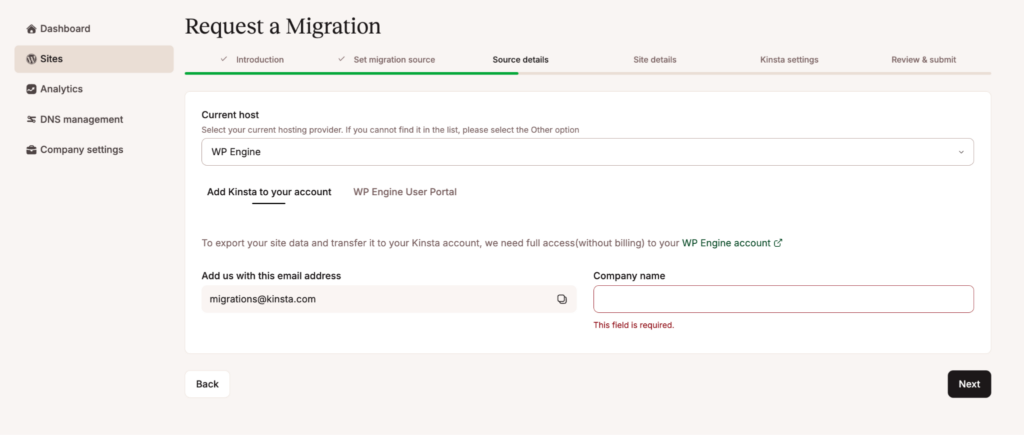
In this step, you need to enter details about their current hosting provider. For a WP Engine site, select “WP Engine” as the current host, then add Kinsta’s migration team to your WP Engine account by granting full access (without billing permissions) using the email address [email protected]. You also need to enter your company name before proceeding to the next step.
Alternatively, you can choose “WP Engine User Portal”, check the box “Proceed without giving us full access.” Note that this option may slow down the migration process significantly and could require additional steps.
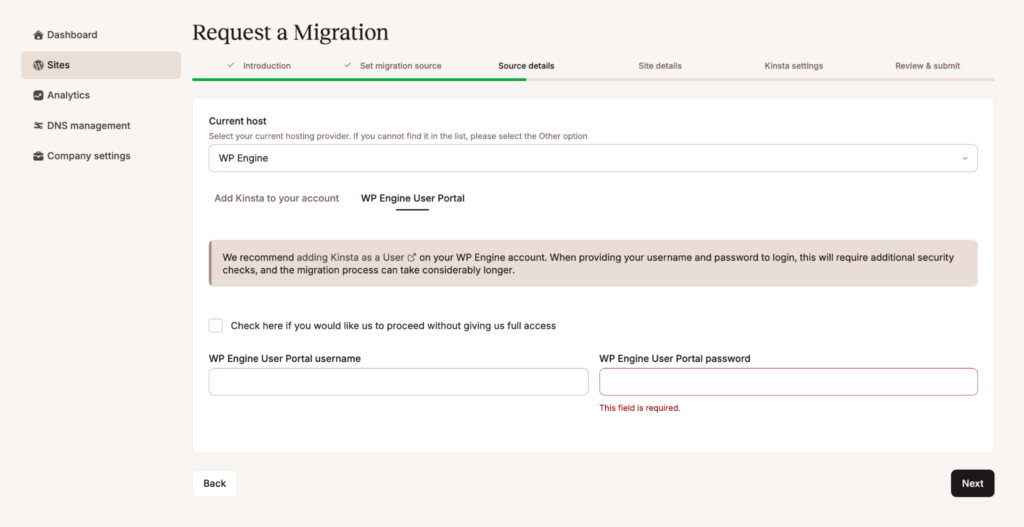
Most users choose the recommended method (Adding Kinsta to your account) with full access for a faster and smoother migration.
Enter Your Site Details
Now, you need to provide essential information about your WordPress website so Kinsta can successfully migrate it.
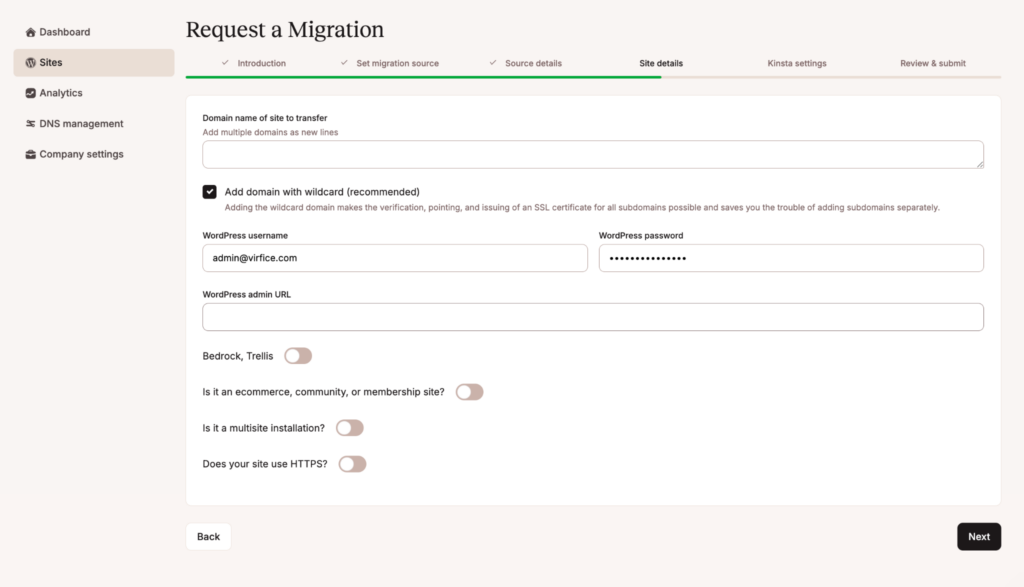
This includes:
- The domain name of the site (add with wildcard recommended for easier SSL setup)
- Your WordPress admin username and password
- The WordPress admin URL (login page address)
- Additional details about your site (whether it uses Bedrock/Trellis, is an ecommerce/community site, multisite, or uses HTTPS)
Accurate information here ensures a smooth migration process.
Configure Kinsta Settings
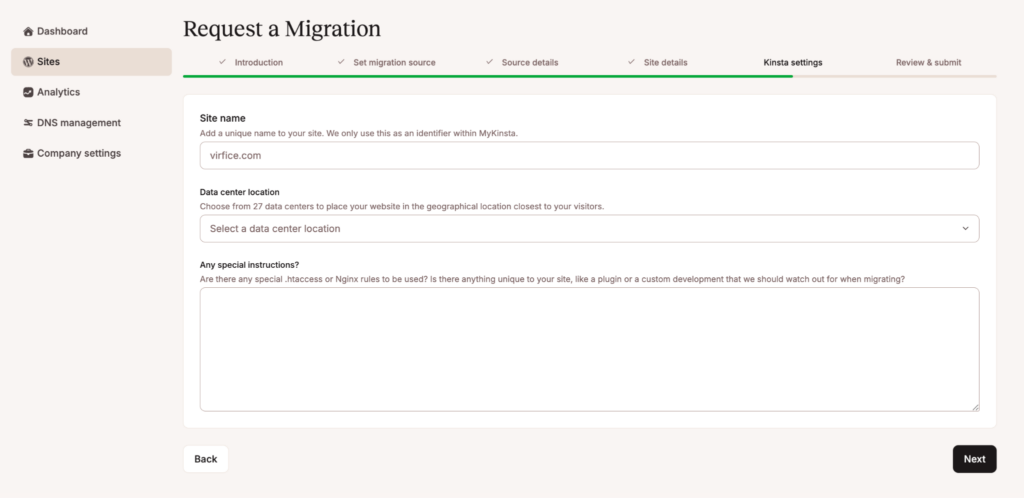
Configure the basic settings for your new Kinsta site by entering a unique site name (for internal identification only), selecting the closest data center location from Kinsta’s 27 global options for optimal performance, and adding any special instructions such as custom .htaccess/Nginx rules, important plugins, or unique site features that the migration team should know about.
Review & Submit
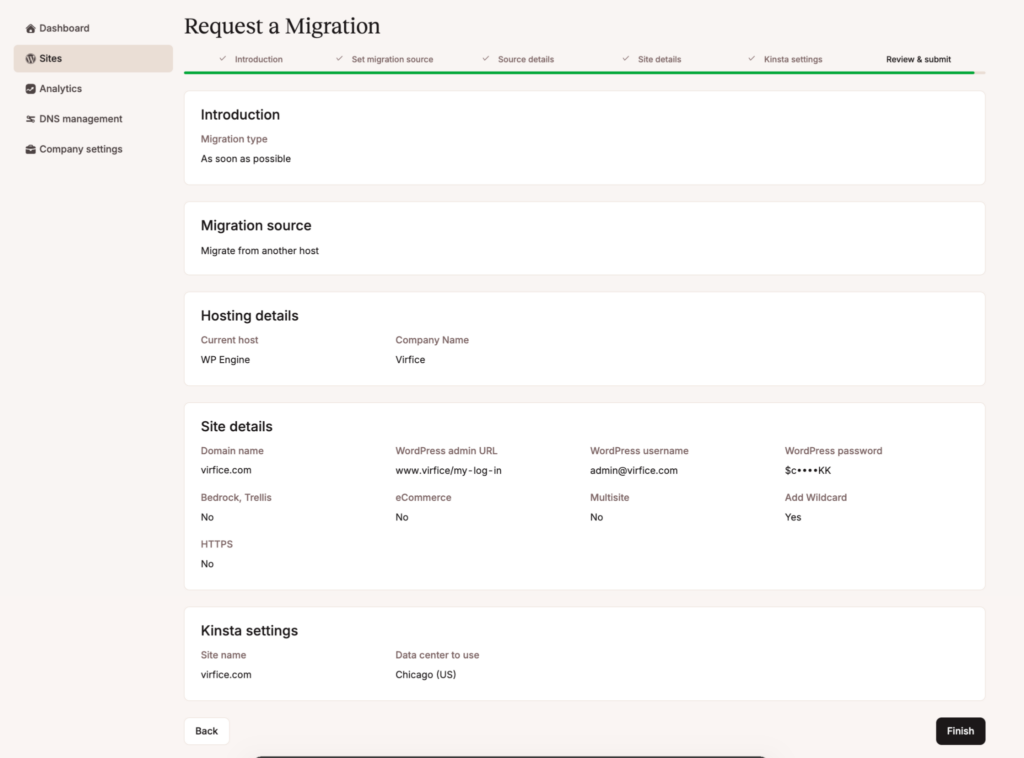
In this final step, you review all the information provided throughout the migration request, including migration type, hosting source details, site details (domain, WordPress credentials, special configurations), and Kinsta settings (site name and data center). Carefully check everything for accuracy, then click Finish to submit your migration request to Kinsta’s team.
How to Migrate Sites from WP Engine to Kinsta all by Yourself.
So, if you want to migrate your sites from WP Engine to Kinsta yourself. You need to follow the manual migration process. First of all, you need to install a migration plugin on your site hosted on WP Engine. Let’s follow the steps one by one.
Install and Activate the Duplicator Plugin
From your WordPress dashboard, go to Plugins → Add New and search for “Duplicator.”
Install and activate Duplicator – WordPress Migration Plugin.
Note: Only the Free version of Duplicator will work on Kinsta’s platform. You can check Kinsta’s guide on migration with the Duplicator plugin.
Create a Site Archive
After activation, navigate to Duplicator → Backups and click Create New to generate a backup package.
Follow the guided steps to build the archive. In most cases, the default settings will work just fine.
For added security, it’s recommended to enable password protection under the Installer settings.
Download the Archive and Installer Files
Once the package is ready, download both the Archive file and the Installer file to your computer. You’ll need these files to upload and complete the migration on your new site.
Create a Site on Kinsta to Migrate Sites from WP Engine
As you have already got the Archive and Installer file, now you need to migrate these to your site on Kinsta.
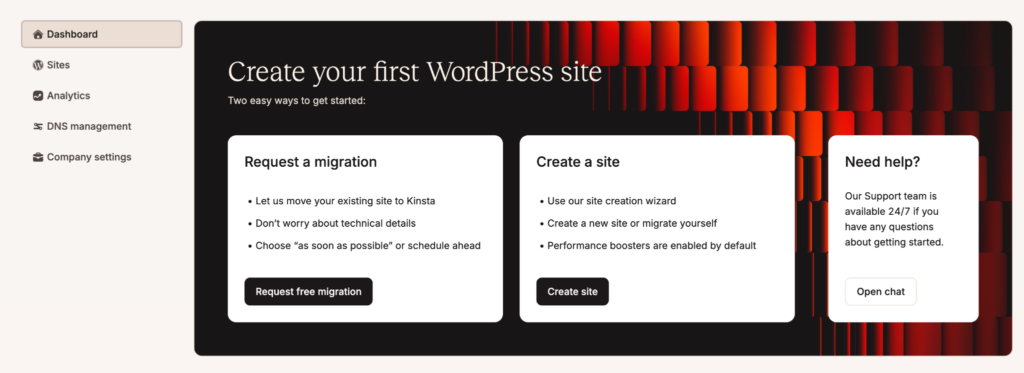
Create a site by clicking on the Create site on the middle and install WordPress on the next step.
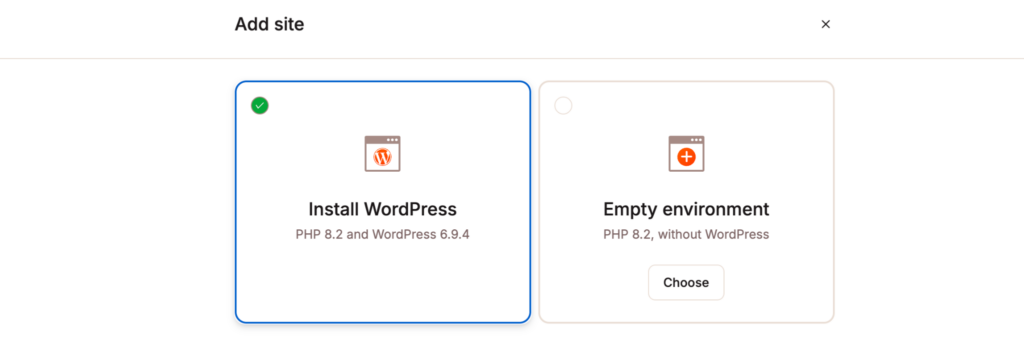
Once done install Duplicator plugin on your site on Kinsta. Deploy the Archive and Installer files and you are good to go. Once done, you will delete all unnecessary files related to just migration. For more detailed steps and guide you can check Kinsta’s guide on migration with the Duplicator plugin.
Congratulations you have successfully migrated your site from WP Engine to Kinsta. Now enjoy the smooth and hassle free hosting experience and keep building your business online.
If you’re looking for improved performance, a cleaner dashboard, and a more user-friendly experience, switching from WP Engine to Kinsta can be a smart move. The migration process is straightforward, and once you’re set up, you’ll likely notice the difference in speed and control. With everything in place, you can focus less on hosting limitations and more on growing your website. Good luck!