
Installing Virfice is just like any other WordPress plugin you generally install. Like other WordPress plugins, it can be installed manually by downloading from the WordPress directory and also from your WordPress site dashboard.
Method 1: Install “Virfice” from your WordPress site Dashboard
You can easily install the Virfice plugin from your WordPress dashboard.
Go to your WordPress Dashboard > Plugins > Add New Plugin. Search “Virfice” and find “Email Customizer for WooCommerce | Virfice” and click on “Install Now”.
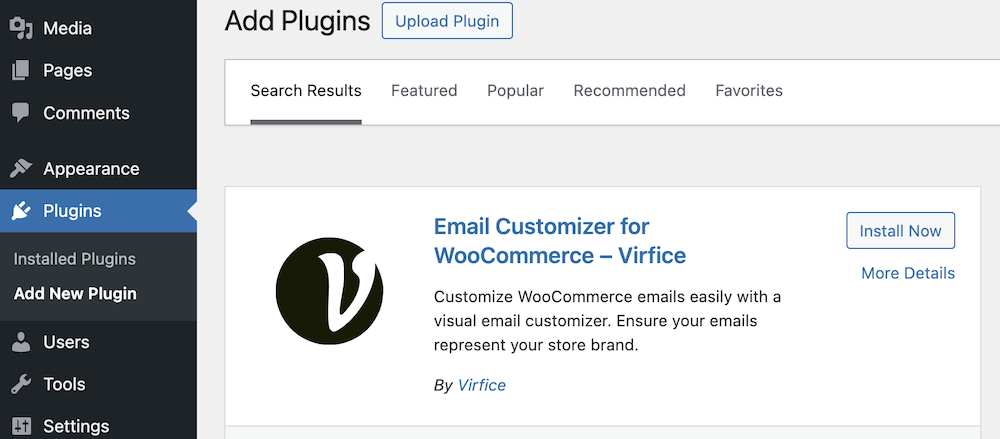
Activate once the installation is done. Congratulations! You have successfully installed the Virfice plugin on your website.

Method 2: Manual installation
To install Virfice manually on your WordPress site, download the plugin from the WordPress plugin directory. Click here to download Virfice (the plugin file comes in the name of emails-for-woocommerce.zip).
Alternatively, you can go to the WordPress plugin directory, search “Virfice” and click on download on the Virfice plugin landing page. (The plugin file comes under the name emails-for-woocommerce.zip).
Go to your WordPress Dashboard > Plugins > Add New Plugin, and click on “Upload Plugin”.
Upload the downloaded emails-for-woocommerce.zip file and click on “Install Now”
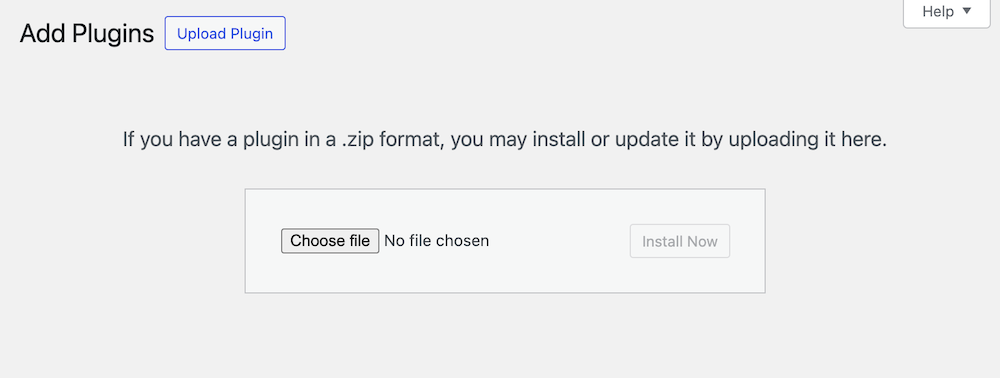
Activate the plugin once the installation is done. Congratulations! You have successfully installed the Virfice plugin on your website.