Every order in your WooCommerce store triggers a series of emails, from order confirmations and invoices to order completion notices and account welcome emails. Customers open these messages because they expect important updates about their purchases. Yet, many stores still rely on default WooCommerce emails that provide order information without encouraging customers to take the next step.
That’s a missed opportunity. The moment after a purchase is when customers are most engaged with your store and may be ready to shop again. With the right approach, you can Turn WooCommerce Transactional Emails into Repeat Sales by adding relevant product recommendations, exclusive coupons, review requests, and personalized follow-up messages that encourage customers to return.
In this guide, you’ll learn how transactional emails differ from marketing emails and why the distinction matters, which WooCommerce emails to optimize, and nine practical ways to increase conversions. You’ll also discover how to customize your transactional emails in WooCommerce, measure their performance, and avoid common mistakes so you can turn routine order updates into opportunities for repeat purchases.
Transactional Emails vs Marketing Emails
The two types can look alike in the inbox, but they serve different purposes and follow different rules.
A transactional email is sent to one person because of something they did: placing an order, creating an account, requesting a password reset. It delivers information the customer expects and needs.
A marketing email promotes your products or content to a list of subscribers, such as a newsletter, a sale announcement or a product launch.
| Transactional emails | Marketing emails | |
|---|---|---|
| Purpose | Confirm or complete a customer action | Promote products, offers or content |
| Trigger | Sent automatically after an action | Scheduled or sent as a campaign |
| Audience | One customer | A list or segment |
| Consent needed | No, the customer expects it | Yes, opt-in is required in many countries |
| Unsubscribe link | Not required while the email stays mainly transactional | Required |
| Personalization | Built in (name, order, products) | Optional |
| Engagement | Typically very high, since customers expect them | Varies by list and content |
| Main goal | Deliver important information | Drive traffic, sales or engagement |
The key phrase is “mainly transactional.” Once promotion takes over, a transactional email is treated as marketing. More on that in the compliance section below.
Which WooCommerce Emails to Optimize
Not every transactional email is a sales opportunity. Focus on the ones customers receive after a successful purchase, and keep problem emails clean and helpful.
| WooCommerce email | When it’s sent | What to add |
|---|---|---|
| Processing order | Right after payment | Thank-you message, related products, a next-order coupon |
| Completed order | When the order ships or is fulfilled | Product care tips, review request, social sharing |
| New account | When a customer account is created | Welcome message, loyalty program, newsletter signup |
| Customer invoice | When you send order details or a payment link | Clear payment button, support contact |
| Customer note | When you add a note to an order | Keep it clean; at most one helpful link |
| Order on hold | When payment is pending | Clear instructions only, no promotions |
| Refunded order | When an order is refunded | A friendly note and a reason to come back later |
| Reset password | When a password reset is requested | Nothing extra. Security emails should stay simple |
Best opportunities: Processing order and Completed order. They reach every buyer, arrive while excitement is high, and have a clear, positive context.
Stay Compliant: Keep the Transaction First
Adding promotions to transactional emails is allowed, but there’s a line you shouldn’t cross. Under the US CAN-SPAM Act, what matters is the email’s primary purpose. According to the FTC’s compliance guide, a mixed email counts as commercial if its subject line would make a reader think it’s an ad, or if the transactional part doesn’t come mainly at the beginning of the message.
If your order email is judged commercial, it must follow all marketing rules, including an unsubscribe link, and you can’t send it to people who opted out.
Three simple rules keep you safe:
- Keep the subject line transactional. “Your order #1042 is confirmed” is fine. “Your order is confirmed + 20% off everything!” is not.
- Put the order details first. Order summary, totals, shipping and payment info go at the top. Offers and recommendations go below.
- Keep promotion secondary. A coupon block or a few related products is plenty. A full catalog is not.
Outside the US, rules can be stricter. Under GDPR, using a customer’s data for marketing generally needs a legal basis such as consent, so don’t add buyers to your newsletter list unless they agreed. When in doubt, check with a legal professional.
9 Proven Ways to Turn WooCommerce Transactional Emails into Repeat Sales
WooCommerce transactional emails don’t have to stop at order updates. With a few strategic changes, you can make them more engaging, encourage customers to return, and generate more repeat purchases.

Here are nine proven ways to turn WooCommerce transactional emails into repeat sales without overwhelming customers or compromising the purpose of these essential emails.
1. Include a Coupon for the Next Purchase
Right after checkout, customers are still in a buying mindset. A coupon in the order confirmation gives them a reason to come back: a percentage off, free shipping, or a gift with the next order.
Example: “Thanks for your order, {customer_first_name}! Here’s 10% off your next one. Use code THANKYOU10 at checkout.”

Give the code an expiry date (for example 30 days) and limit it to one use per customer in WooCommerce → Marketing → Coupons. A deadline creates urgency, and usage limits protect your margins.
2. Ask for a Review or a Social Share
The Completed order email is the right moment to ask for a review. The product has arrived and the excitement is fresh. Link straight to the product’s review form, or invite customers to tag you on social media.
Tip: Add a small incentive, such as “Share your unboxing with #YourBrand and get featured on our page.”
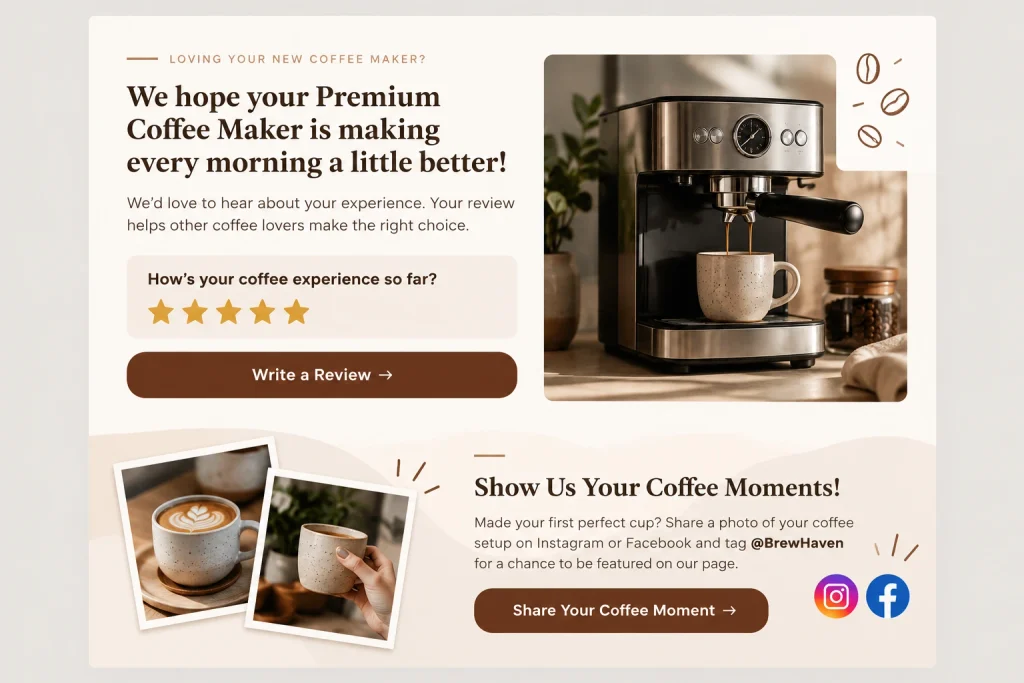
The default WooCommerce emails don’t let you add review blocks or extra buttons. A WooCommerce email builder like Virfice lets you add review requests, customer testimonials and other sections.
3. Add One Clear Call-to-Action Button
Every transactional email should have one obvious next step: track the order, explore similar products, or claim a discount. One strong button beats five weak links.
Good button labels describe the action:
- Track your order
- Shop similar products
- Get 15% off your next order
4. Recommend Related Products
Someone who bought running shoes may need socks, a water bottle or a fitness tracker. Show two to four related items below the order details. Pick products that genuinely go with the purchase, such as accessories, refills or upgrades, so the email feels helpful rather than pushy.
5. Invite Customers to Your Loyalty Program
Turn one-time buyers into regulars by showing what they just earned.
Copy idea: “You just earned 50 points with this order! Join our rewards program to start redeeming them.”
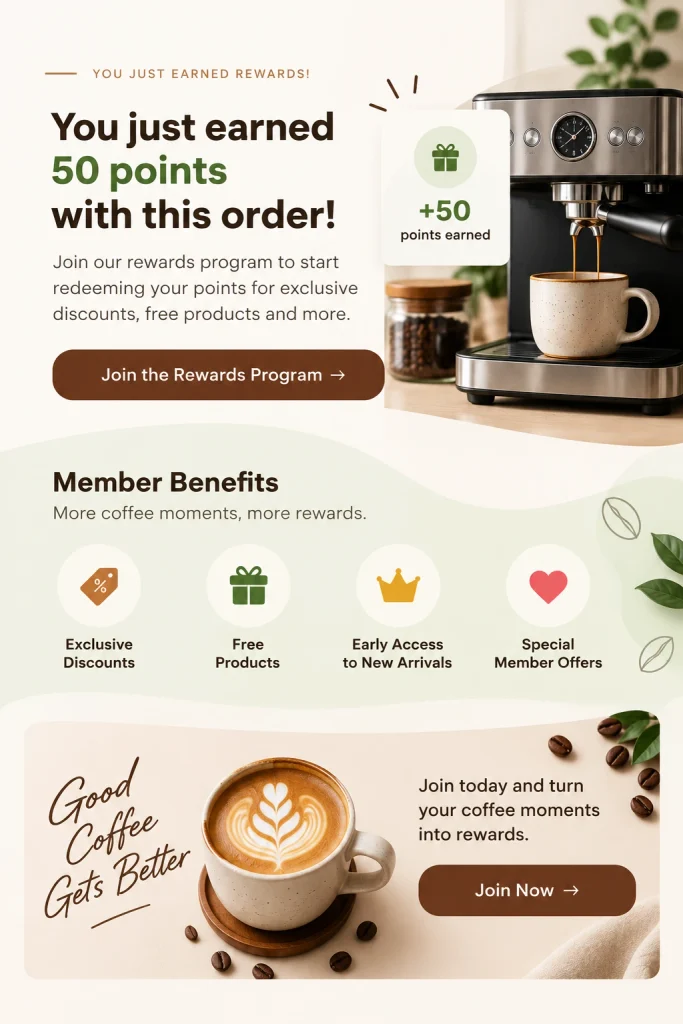
When customers see an immediate reward, they’re far more likely to join and come back.
6. Share Useful Content
Not every addition has to sell. Helpful content builds trust and reduces returns:
- Bought a coffee machine? Link to “How to make barista-style coffee at home.”
- Ordered a skincare kit? Add a short video on how to use each product.
7. Offer Exclusive or Early Access
Make customers feel valued with perks only buyers get: early access to a new collection, a members-only sale, or first pick of limited stock.
Example: “You’re on the VIP list! Shop our summer collection 24 hours before everyone else.”
8. Invite Buyers to Your Newsletter
A buyer isn’t automatically a subscriber. Add a short, friendly signup invitation to the New account or Completed order email, such as “Get new arrivals and members-only deals first,” with a button to your signup form. This grows your marketing list with people who already trust you, while respecting consent.
9. Promote a Referral Program
Happy customers are your best marketers. In the Completed order email, offer a reward for referring a friend, for example “Give $10, get $10.” It turns one satisfied buyer into new customers.
How to Turn WooCommerce Transactional Emails into Repeat Sales with Virfice
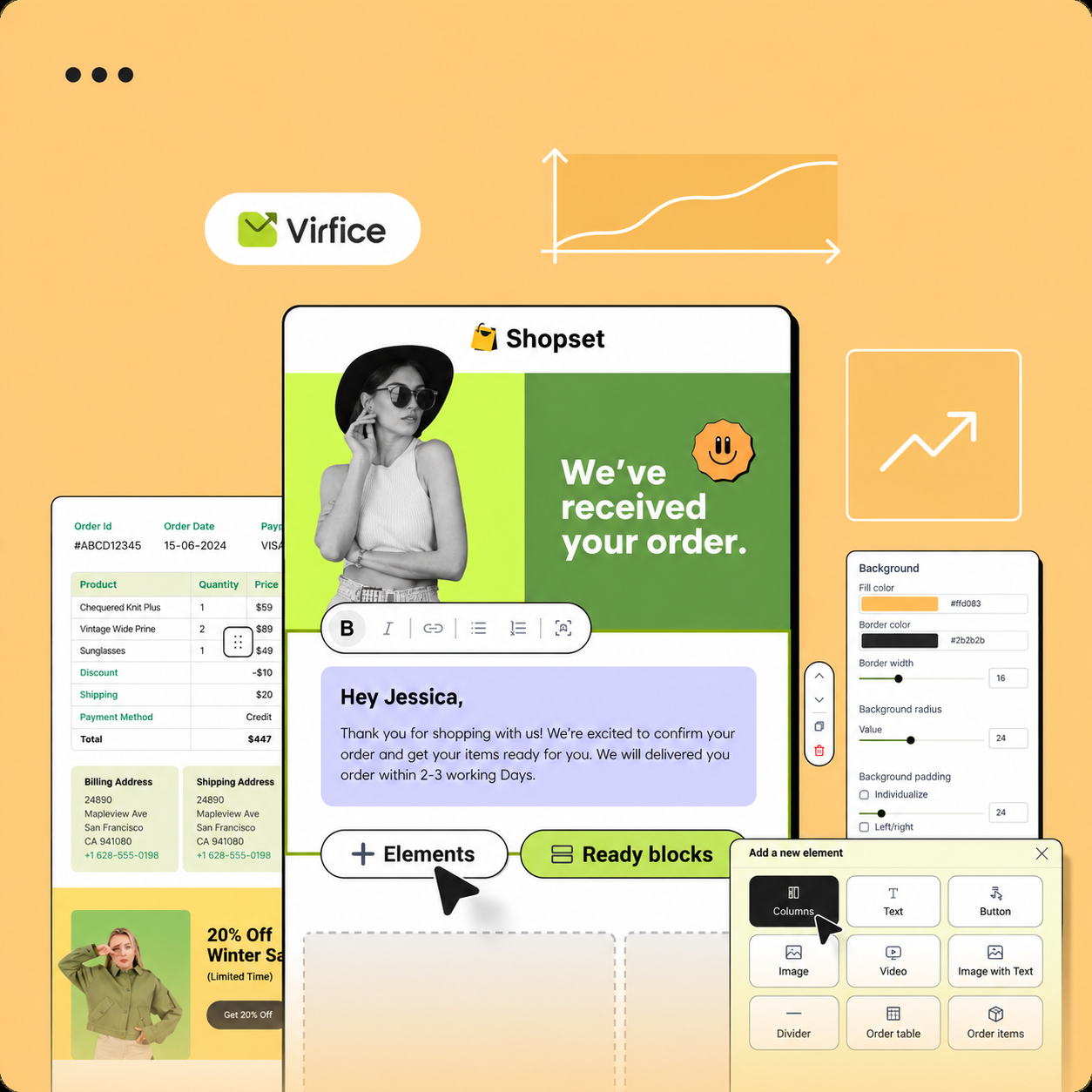
WooCommerce’s built-in email settings offer limited customization options, such as changing colors, adding a header image, and editing basic text. To turn WooCommerce transactional emails into repeat sales, you need more flexibility to add next-order coupons, call-to-action buttons, and product recommendations. That’s where Virfice, a free WooCommerce email builder, comes in.
Follow these steps to customize your transactional emails and encourage more customers to shop again.
Step 1: Install Virfice
Go to Plugins → Add New Plugin, search for Virfice, then click Install Now and Activate.
Step 2: Open the Email You Want to Improve
Go to Virfice → System Emails. You’ll see every WooCommerce email with its recipient. Click Edit on Processing order, and turn on Virfice template to switch that email to the drag-and-drop builder.

Step 3: Keep the Order Details at the Top
The template already includes the order table, totals and addresses. Leave them at the top of the email, as covered in the compliance section.
Step 4: Add Your Conversion Blocks Below
Drag elements from the Elements panel below the order details:
- a Text block with your coupon code;
- a Button linking to your shop or a product category;
- a Columns block with an Image and a Button in each column for two or three related products;
- Social links for sharing.
Use placeholders to personalize the message, such as {customer_first_name} for the customer’s name and {order_number} for the order number.

Step 5: Preview with a Real Order and Test
Use Select an order for preview to see the email with real products and prices. Then click Send test mail and check it on desktop and mobile.
Step 6: Save and Repeat
Save the email, then repeat for Completed order (review request and social sharing) and New account (welcome, loyalty and newsletter invitation).
Deliverability tip: Transactional emails only convert if they arrive. Connect an SMTP provider in Virfice → Settings → SMTP and turn on Enable for whole site, so WooCommerce emails go through it instead of your web host’s mail server.
Go Further: Follow-Up Emails After the Order
Transactional emails arrive at a fixed moment. Follow-up automations let you reach customers at the right moment, such as a week after delivery, when they’ve actually used the product. With Virfice Pro you can trigger emails from WooCommerce order events and add conditions.
| Trigger | Wait | |
|---|---|---|
| Order Completed | 7 days | Ask for a review, now that they’ve used the product |
| Order Completed | 30 days | Refill or replenishment reminder for consumables |
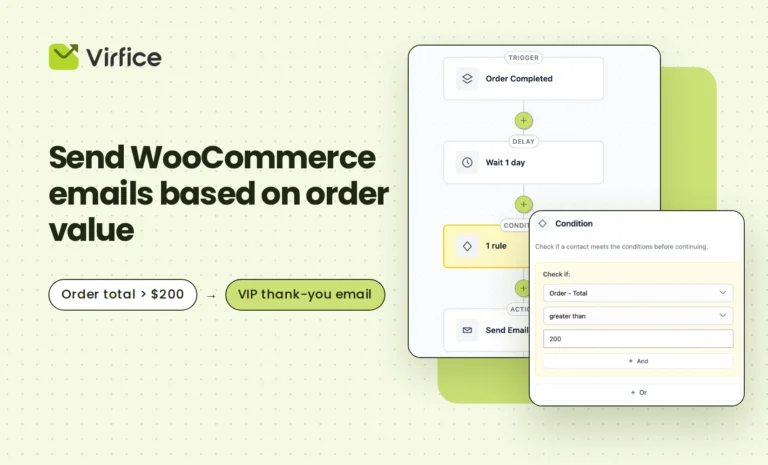
| Order Completed, order total over a set amount | None | VIP thank-you with an exclusive perk |
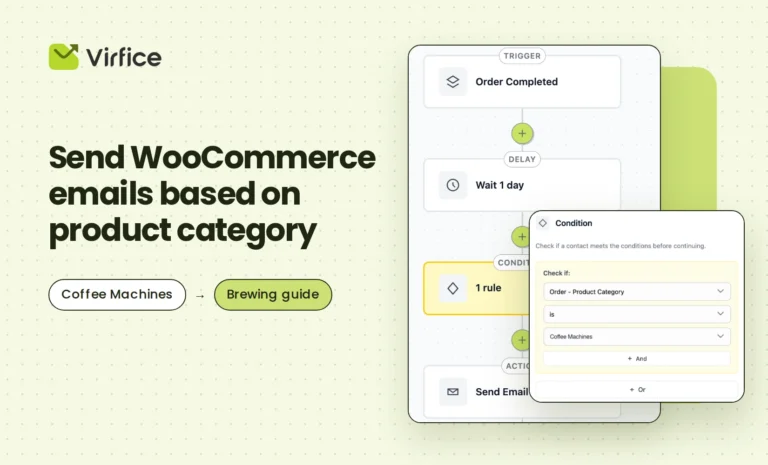
| Order Completed, product in a set category | 3 days | Care guide or tips for that category |
| Cart Abandoned | 1 hour | Reminder with a link back to the cart |
These follow-ups are marketing emails, so send them only to customers who agreed to hear from you, and include an unsubscribe link.
For detailed setups, see:
- How to Send WooCommerce Emails Based on Order Value
- How to Send WooCommerce Emails Based on Product Category
- How to Automate Emails for Specific Coupon Codes in WooCommerce
How to Measure the Results
You can’t improve what you don’t track. Watch these numbers for a month before and after your changes:
| What to track | Where to find it |
|---|---|
| Coupon redemptions | WooCommerce → Marketing → Coupons: the usage count for each code |
| Repeat purchase rate | WooCommerce → Customers: sort by the Orders column to see how many customers ordered more than once |
| Clicks on your buttons and products | UTM tags on your links (for example ?utm_source=woocommerce&utm_medium=email&utm_campaign=processing-order) in Google Analytics |
| New reviews | The number of product reviews per month |
Use a unique coupon code per email, for example THANKYOU10 in Processing order and REVIEW10 in Completed order. Then you know exactly which email drove each sale.
Change one thing at a time, such as the offer, the button text or the product picks, so you know what made the difference.
Mistakes to Avoid
- Burying the order details. Customers open the email to check their order. If they have to scroll past ads to find it, you lose trust, and the email may count as marketing.
- Promotional subject lines. Keep the subject about the order. Save offers for the body.
- Too many offers. One coupon or a few products is enough. A crowded email gets ignored.
- Adding promotions to problem emails. Failed payments, refunds and password resets need clear help, not a sales pitch.
- Forgetting mobile. Most emails are read on phones. Use large buttons and short text, and check the preview.
- Ignoring deliverability. Sending from your web host’s mail server often lands order emails in spam. Use a proper SMTP provider.
- Signing buyers up without consent. Invite them to your newsletter; don’t add them automatically.
Frequently Asked Questions
Q: Can I add promotions to transactional emails?
A: Yes, as long as the email stays mainly transactional: a non-promotional subject line, order details first, and offers as a secondary section.
Q: Do transactional emails need an unsubscribe link?
A: Not while they remain primarily transactional. If promotion becomes the main purpose, the email is treated as marketing and needs one.
Q: Which WooCommerce email converts best?
A: Usually the Processing order and Completed order emails. Every buyer receives them, and they arrive when interest is highest.
Q: Can I customize WooCommerce emails without code?
A: Yes. An email builder such as Virfice lets you redesign WooCommerce emails with drag and drop, add buttons, images and coupons, and preview them with real orders.
Q: Will adding content hurt deliverability?
A: Not if you keep the email focused and send through a reliable SMTP provider. Heavy images, many links and spammy wording are what hurt.
Start with One Email
You don’t need to redesign everything at once. Start with the Processing order email: keep the order details on top, add a next-order coupon and one clear button, and send yourself a test. Then measure coupon redemptions for a few weeks and move on to the Completed order email.
Small improvements to emails your customers already open can lead to more repeat purchases over time. Try Virfice for free and turn WooCommerce transactional emails into repeat sales with more engaging, conversion-focused emails.